> ## Documentation Index
> Fetch the complete documentation index at: https://docs.dfns.co/llms.txt
> Use this file to discover all available pages before exploring further.
# OpenAPI & Postman
> Download the standardized OpenAPI specification and ready-to-use Postman collection for the DFNS API to scaffold integrations and testing.
## OpenAPI
You can find the OpenAPI specification of the DFNS API here: [OpenAPI Specification](/openapi.yaml)
## Postman
The DFNS Postman collection lets you test API endpoints without writing code. It includes a pre-request script that automatically handles [User Action Signing](/guides/developers/signing-requests) for state-changing requests (POST, PUT, DELETE).
 You must **fork** the collection using the button above. Downloading or importing the collection manually may result in missing scripts or environment variables.
### Setup
Generate an ECDSA key pair that will be used to sign requests:
```shell theme={null}
# Generate private key
openssl ecparam -genkey -name prime256v1 -noout -out prime256v1.pem
# Extract public key
openssl pkey -in prime256v1.pem -pubout -out prime256v1.public.pem
```
Keep the private key file (`prime256v1.pem`) secure - you'll need it in Step 3.
1. Go to [Settings > Personal Access Token](https://app.dfns.io/settings/developers/personal-access-tokens) in the DFNS Dashboard
2. Click **New Personal Access Token**
3. Paste the contents of `prime256v1.public.pem` into the **Public Key** field
4. Click **Create**
After creation, copy the **Auth Token** (displayed once - copy it immediately). You'll need it in the next step.
1. In Postman, go to **Environments** in the left sidebar
2. Select the **DFNS API - Prod** environment
3. Fill in the **Current Value** column:
| Variable | Value |
| ---------------------- | -------------------------------------------------------------------------------------------------------------------------------------------- |
| `dfnsApiDomain` | Already set to `api.dfns.io`. Change to `api.uae.dfns.io` if you're using the UAE region. See [Regions](/api-reference/regions) for details. |
| `authToken` | The JWT token from Step 2 |
| `credentialPrivateKey` | Contents of `prime256v1.pem` (include the full key with newlines) |
4. Click **Save**
5. Set this environment as **Active** using the dropdown in the top-right corner of Postman
When pasting `credentialPrivateKey`, include the entire key including `-----BEGIN EC PRIVATE KEY-----` and `-----END EC PRIVATE KEY-----` lines.
Before making requests, verify the pre-request script is present:
1. Click on the **DFNS API** collection name in the left sidebar
2. Go to the **Scripts** tab (or **Pre-request Script** in older Postman versions)
3. You should see JavaScript code that handles User Action Signing
You must **fork** the collection using the button above. Downloading or importing the collection manually may result in missing scripts or environment variables.
### Setup
Generate an ECDSA key pair that will be used to sign requests:
```shell theme={null}
# Generate private key
openssl ecparam -genkey -name prime256v1 -noout -out prime256v1.pem
# Extract public key
openssl pkey -in prime256v1.pem -pubout -out prime256v1.public.pem
```
Keep the private key file (`prime256v1.pem`) secure - you'll need it in Step 3.
1. Go to [Settings > Personal Access Token](https://app.dfns.io/settings/developers/personal-access-tokens) in the DFNS Dashboard
2. Click **New Personal Access Token**
3. Paste the contents of `prime256v1.public.pem` into the **Public Key** field
4. Click **Create**
After creation, copy the **Auth Token** (displayed once - copy it immediately). You'll need it in the next step.
1. In Postman, go to **Environments** in the left sidebar
2. Select the **DFNS API - Prod** environment
3. Fill in the **Current Value** column:
| Variable | Value |
| ---------------------- | -------------------------------------------------------------------------------------------------------------------------------------------- |
| `dfnsApiDomain` | Already set to `api.dfns.io`. Change to `api.uae.dfns.io` if you're using the UAE region. See [Regions](/api-reference/regions) for details. |
| `authToken` | The JWT token from Step 2 |
| `credentialPrivateKey` | Contents of `prime256v1.pem` (include the full key with newlines) |
4. Click **Save**
5. Set this environment as **Active** using the dropdown in the top-right corner of Postman
When pasting `credentialPrivateKey`, include the entire key including `-----BEGIN EC PRIVATE KEY-----` and `-----END EC PRIVATE KEY-----` lines.
Before making requests, verify the pre-request script is present:
1. Click on the **DFNS API** collection name in the left sidebar
2. Go to the **Scripts** tab (or **Pre-request Script** in older Postman versions)
3. You should see JavaScript code that handles User Action Signing
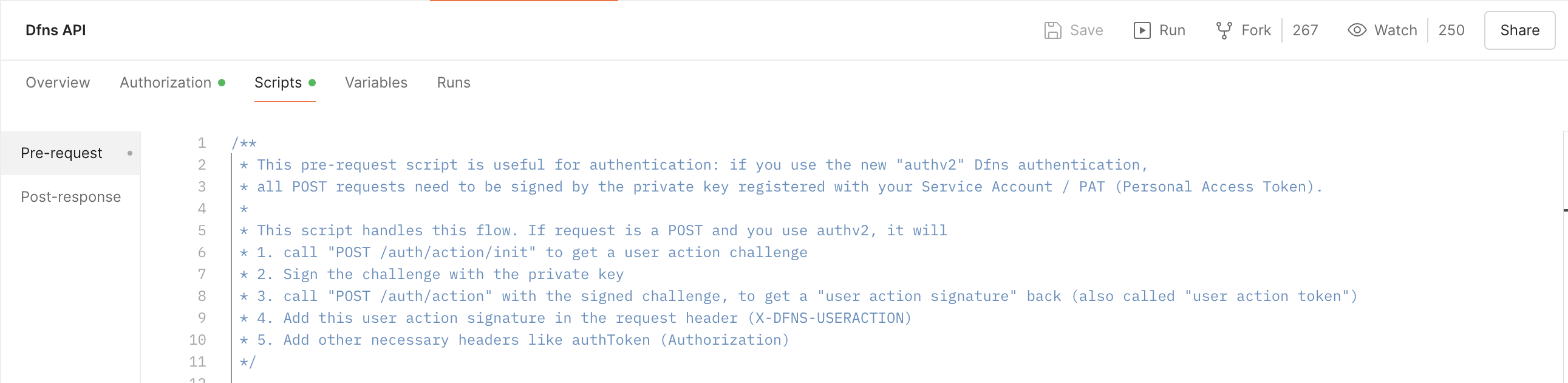 If the script is empty, see [Troubleshooting](#pre-request-script-is-empty) below.
Start with a read-only request to verify your setup:
1. Open **Wallets > List Wallets** (`GET /wallets`)
2. Click **Send**
3. You should receive a `200` response with your wallets list
If this works, your authentication is configured correctly.
### How the pre-request script works
The pre-request script automatically handles [User Action Signing](/api-reference/auth/signing-flows) for POST, PUT, and DELETE requests:
1. Detects when you're making a state-changing request
2. Calls `/auth/action/init` to get a challenge
3. Signs the challenge using your `credentialPrivateKey`
4. Populates the `X-DFNS-USERACTION` header with the signed result
This means you don't need to manually handle the challenge-response flow for each request.
### Quick checklist
If requests aren't working, verify each of these:
* [ ] You **forked** the collection using the "Run in Postman" button (not imported manually)
* [ ] The **DFNS API - Prod** environment is selected as active (top-right dropdown)
* [ ] All three variables have **Current Values** filled in (not just Initial Value)
* [ ] `authToken` is the full JWT string from your Personal Access Token
* [ ] `credentialPrivateKey` includes the full PEM with `-----BEGIN EC PRIVATE KEY-----` and `-----END EC PRIVATE KEY-----` headers
* [ ] `dfnsApiDomain` does **not** include `https://` — just `api.dfns.io`
* [ ] The pre-request script exists on the **collection** level (click the collection name, then Scripts tab)
### Troubleshooting
#### Pre-request script is empty
If the Scripts tab shows no code:
1. **Re-fork the collection** - Don't import manually. Use the "Run in Postman" button above to fork the official collection.
2. **Check the collection level** - The script is on the *collection*, not individual requests. Click the collection name, not a specific endpoint.
3. **Update Postman** - Older versions may have issues with collection scripts.
#### 403 "User action signature is missing"
This error means the pre-request script didn't run or failed. Check:
1. **Environment is active** - Verify your environment is selected in the top-right dropdown
2. **All variables have Current Values** - Initial Value is not used; you must fill Current Value
3. **Private key format** - Must include full PEM format with headers and newlines
4. **Check Postman Console** - Go to **View > Show Postman Console** to see script errors
#### 401 Unauthorized
1. Verify `authToken` is correct (it's a long JWT string)
2. Check `dfnsApiDomain` matches your organization's region
3. Ensure the PAT hasn't been revoked or expired. Decode your token at [jwt.io](https://jwt.io) and check the `exp` field for the expiry date.
#### Request hangs or times out
1. Check `dfnsApiDomain` doesn't include `https://` (just use `api.dfns.io`)
2. Verify you have network access to the DFNS API
If the script is empty, see [Troubleshooting](#pre-request-script-is-empty) below.
Start with a read-only request to verify your setup:
1. Open **Wallets > List Wallets** (`GET /wallets`)
2. Click **Send**
3. You should receive a `200` response with your wallets list
If this works, your authentication is configured correctly.
### How the pre-request script works
The pre-request script automatically handles [User Action Signing](/api-reference/auth/signing-flows) for POST, PUT, and DELETE requests:
1. Detects when you're making a state-changing request
2. Calls `/auth/action/init` to get a challenge
3. Signs the challenge using your `credentialPrivateKey`
4. Populates the `X-DFNS-USERACTION` header with the signed result
This means you don't need to manually handle the challenge-response flow for each request.
### Quick checklist
If requests aren't working, verify each of these:
* [ ] You **forked** the collection using the "Run in Postman" button (not imported manually)
* [ ] The **DFNS API - Prod** environment is selected as active (top-right dropdown)
* [ ] All three variables have **Current Values** filled in (not just Initial Value)
* [ ] `authToken` is the full JWT string from your Personal Access Token
* [ ] `credentialPrivateKey` includes the full PEM with `-----BEGIN EC PRIVATE KEY-----` and `-----END EC PRIVATE KEY-----` headers
* [ ] `dfnsApiDomain` does **not** include `https://` — just `api.dfns.io`
* [ ] The pre-request script exists on the **collection** level (click the collection name, then Scripts tab)
### Troubleshooting
#### Pre-request script is empty
If the Scripts tab shows no code:
1. **Re-fork the collection** - Don't import manually. Use the "Run in Postman" button above to fork the official collection.
2. **Check the collection level** - The script is on the *collection*, not individual requests. Click the collection name, not a specific endpoint.
3. **Update Postman** - Older versions may have issues with collection scripts.
#### 403 "User action signature is missing"
This error means the pre-request script didn't run or failed. Check:
1. **Environment is active** - Verify your environment is selected in the top-right dropdown
2. **All variables have Current Values** - Initial Value is not used; you must fill Current Value
3. **Private key format** - Must include full PEM format with headers and newlines
4. **Check Postman Console** - Go to **View > Show Postman Console** to see script errors
#### 401 Unauthorized
1. Verify `authToken` is correct (it's a long JWT string)
2. Check `dfnsApiDomain` matches your organization's region
3. Ensure the PAT hasn't been revoked or expired. Decode your token at [jwt.io](https://jwt.io) and check the `exp` field for the expiry date.
#### Request hangs or times out
1. Check `dfnsApiDomain` doesn't include `https://` (just use `api.dfns.io`)
2. Verify you have network access to the DFNS API