> ## Documentation Index
> Fetch the complete documentation index at: https://docs.dfns.co/llms.txt
> Use this file to discover all available pages before exploring further.
# Approve transactions
> Review and approve pending transactions that require policy approval from the DFNS dashboard, with audit trails and multi-approver workflows.
When a transaction triggers a policy that requires approval, it enters a pending state until the required approvers take action. This guide covers how to view, review, and approve or reject pending transactions.
## Viewing pending approvals
### Dashboard
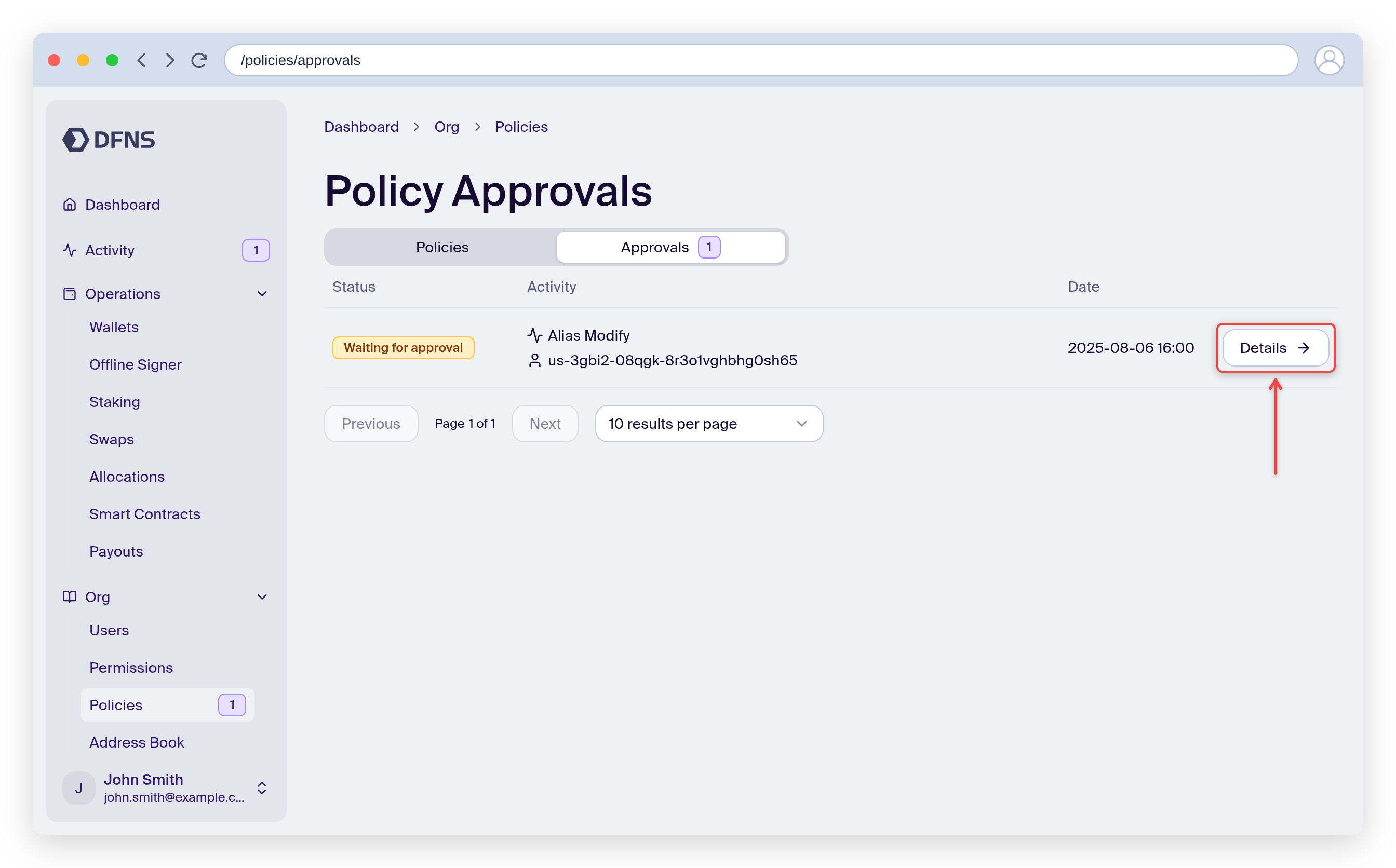
1. Navigate to **Policies** in the sidebar and open the **Approvals** tab
2. You'll see a list of pending items with:
* Transaction type (transfer, transaction, signature)
* Wallet involved
* Amount and recipient
* Policy that triggered the approval
* Time remaining (if auto-reject is configured)
 ### Notifications
Depending on your organization's configuration, you may receive notifications when approvals are pending:
* **Slack/Teams** - Via [Zapier integration](/guides/notify-approvers-with-zapier)
* **Webhooks** - The `policy.approval.pending` event fires when approval is needed
## Reviewing a pending transaction
Before approving, review the transaction details:
1. Click on the pending approval to open details
2. Review:
* **Initiator** - Who requested the transaction
* **Wallet** - Which wallet is involved
* **Type** - Transfer, transaction, or signature
* **Recipient** - Destination address
* **Amount** - Value being transferred
* **Policy** - Which policy triggered the approval requirement
* **Other approvers** - Who else needs to approve (for multi-sig)
Always verify the recipient address and amount before approving. Address poisoning attacks use similar-looking addresses to trick approvers.
## Approving a transaction
1. Open the pending approval
2. Review all transaction details
3. Click **Approve**
4. 🔑 Sign the approval with your passkey
### Notifications
Depending on your organization's configuration, you may receive notifications when approvals are pending:
* **Slack/Teams** - Via [Zapier integration](/guides/notify-approvers-with-zapier)
* **Webhooks** - The `policy.approval.pending` event fires when approval is needed
## Reviewing a pending transaction
Before approving, review the transaction details:
1. Click on the pending approval to open details
2. Review:
* **Initiator** - Who requested the transaction
* **Wallet** - Which wallet is involved
* **Type** - Transfer, transaction, or signature
* **Recipient** - Destination address
* **Amount** - Value being transferred
* **Policy** - Which policy triggered the approval requirement
* **Other approvers** - Who else needs to approve (for multi-sig)
Always verify the recipient address and amount before approving. Address poisoning attacks use similar-looking addresses to trick approvers.
## Approving a transaction
1. Open the pending approval
2. Review all transaction details
3. Click **Approve**
4. 🔑 Sign the approval with your passkey
 After approval:
* If quorum is met (e.g., 2-of-3 approved), the transaction executes
* If more approvals are needed, the transaction stays pending
* The initiator cannot approve their own transaction (unless specifically allowed by policy)
## Rejecting a transaction
If a transaction looks incorrect or suspicious:
1. Open the pending approval
2. Review the transaction details
3. Click **Reject**
4. Optionally provide a reason for rejection
5. 🔑 Sign the rejection with your passkey
After rejection:
* The transaction is cancelled
* The initiator receives notification
* The rejection and reason are logged for audit
When rejecting, provide a reason so the initiator understands why. This helps prevent repeated incorrect requests.
## Approval timeouts
Policies can configure an auto-reject timeout. If approvers don't act within the timeout:
* The transaction is automatically rejected
* No manual action is needed
* The timeout is shown on the pending approval
## Quorum requirements
Multi-signature policies require a specific number of approvals (quorum):
| Quorum | Meaning |
| ------ | -------------------------------------- |
| 1-of-2 | Any one of two designated approvers |
| 2-of-3 | Any two of three designated approvers |
| 3-of-5 | Any three of five designated approvers |
The approval status shows:
* How many approvals are needed
* How many have been received
* Who has already approved
## Multiple approval groups
Some policies require approval from multiple groups. For example:
* 1 approval from Operations AND
* 1 approval from Compliance
Both conditions must be met before the transaction executes.
## For developers
To manage approvals programmatically:
List and process approvals via API
Get notified of pending approvals
## Related guides
Set up approval requirements
Initiate transfers
Secure your approval workflows
After approval:
* If quorum is met (e.g., 2-of-3 approved), the transaction executes
* If more approvals are needed, the transaction stays pending
* The initiator cannot approve their own transaction (unless specifically allowed by policy)
## Rejecting a transaction
If a transaction looks incorrect or suspicious:
1. Open the pending approval
2. Review the transaction details
3. Click **Reject**
4. Optionally provide a reason for rejection
5. 🔑 Sign the rejection with your passkey
After rejection:
* The transaction is cancelled
* The initiator receives notification
* The rejection and reason are logged for audit
When rejecting, provide a reason so the initiator understands why. This helps prevent repeated incorrect requests.
## Approval timeouts
Policies can configure an auto-reject timeout. If approvers don't act within the timeout:
* The transaction is automatically rejected
* No manual action is needed
* The timeout is shown on the pending approval
## Quorum requirements
Multi-signature policies require a specific number of approvals (quorum):
| Quorum | Meaning |
| ------ | -------------------------------------- |
| 1-of-2 | Any one of two designated approvers |
| 2-of-3 | Any two of three designated approvers |
| 3-of-5 | Any three of five designated approvers |
The approval status shows:
* How many approvals are needed
* How many have been received
* Who has already approved
## Multiple approval groups
Some policies require approval from multiple groups. For example:
* 1 approval from Operations AND
* 1 approval from Compliance
Both conditions must be met before the transaction executes.
## For developers
To manage approvals programmatically:
List and process approvals via API
Get notified of pending approvals
## Related guides
Set up approval requirements
Initiate transfers
Secure your approval workflows