> ## Documentation Index
> Fetch the complete documentation index at: https://docs.dfns.co/llms.txt
> Use this file to discover all available pages before exploring further.
# Configure WebAuthn
> How to configure the WebAuthn relying party ID (rpId) and origin settings for DFNS passkey registration and signing on web and mobile.
DFNS uses WebAuthn (passkeys) for user authentication. This guide explains how to configure the relying party ID (rpId) for different scenarios.
## What is rpId?
The **relying party ID** (rpId) is a domain identifier that ties passkey credentials to your application. It determines which domain(s) can use a passkey credential.
```typescript theme={null}
// When creating a passkey
const credential = await navigator.credentials.create({
publicKey: {
rp: {
id: 'example.com', // This is the rpId
name: 'My Application'
},
// ... other options
}
})
```
A passkey created with one rpId cannot be used with a different rpId. Choose your rpId carefully before deploying to production.
## rpId rules
1. **Must be a valid domain** - e.g., `example.com`, not `https://example.com`
2. **Must match or be a parent of the current origin** - A passkey for `example.com` works on `app.example.com`, but not vice versa
3. **Cannot be a public suffix** - e.g., `com`, `co.uk` are not allowed
| Your domain | Valid rpId values |
| --------------------- | ------------------------------------------------------- |
| `app.example.com` | `app.example.com`, `example.com` |
| `example.com` | `example.com` only |
| `sub.app.example.com` | `sub.app.example.com`, `app.example.com`, `example.com` |
## When to specify rpId
### Registration
When registering users via [Delegated Registration](/api-reference/auth/registration-flows):
```typescript title="Frontend" theme={null}
import { WebAuthn } from '@dfns/sdk-browser'
const webauthn = new WebAuthn({
rpId: 'example.com', // Your domain
})
const attestation = await webauthn.create(challenge)
```
### Login
When logging in via [Delegated Login](/api-reference/auth/login-flows):
```typescript title="Frontend" theme={null}
const webauthn = new WebAuthn({
rpId: 'example.com', // Must match registration rpId
})
const assertion = await webauthn.sign(challenge)
```
### User action signing
When signing user actions:
```typescript title="Frontend" theme={null}
const webauthn = new WebAuthn({
rpId: 'example.com',
})
const signedChallenge = await webauthn.sign(userActionChallenge)
```
### Recovery
When recovering an account:
```typescript title="Frontend" theme={null}
const webauthn = new WebAuthn({
rpId: 'example.com', // Must match original registration
})
const attestation = await webauthn.create(recoveryChallenge)
```
## Development vs production
### Local development
For local development, use `localhost`:
```typescript theme={null}
const webauthn = new WebAuthn({
rpId: 'localhost',
})
```
Passkeys created on `localhost` only work on `localhost`. You'll need to create new passkeys when moving to production.
### Staging environments
For staging, use a subdomain of your production domain:
```typescript theme={null}
// Staging: staging.example.com
const webauthn = new WebAuthn({
rpId: 'example.com', // Use parent domain
})
```
This allows passkeys to work on both staging and production.
### Production
Use your root domain for maximum flexibility:
```typescript theme={null}
// Production: app.example.com
const webauthn = new WebAuthn({
rpId: 'example.com', // Root domain
})
```
## Dashboard configuration
Whitelist your domains in the DFNS dashboard:
1. Navigate to **Settings > Webauthn Relying Party**
2. Add your relying party domain (e.g., `example.com`)
3. Choose origin settings:
* **All origins** (`*`): Allows all subdomains and associated mobile apps
* **Specific origins**: Restrict to specific URLs if needed
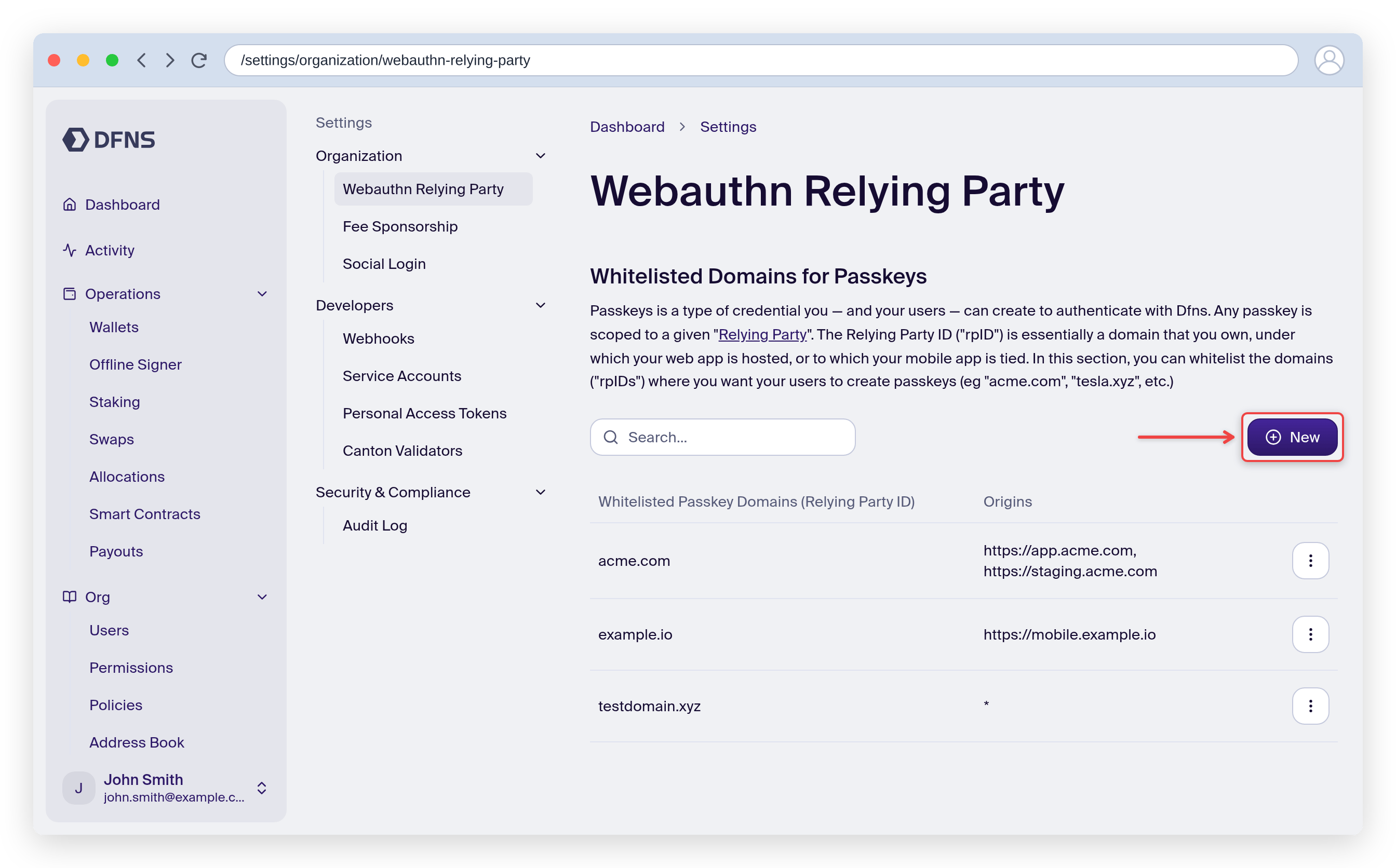 Using the root domain (e.g., `example.com`) as rpId allows passkeys to work across all subdomains (`app.example.com`, `staging.example.com`) and associated mobile apps.
## Mobile apps
For mobile apps (iOS, Android, React Native, Flutter), the rpId must match a domain you control, and you must host association files.
Mobile apps cannot use `localhost` for passkeys. You must use a real domain with proper association files, even during development.
### 1. Whitelist your domain in DFNS
Before configuring your app, add your domain to DFNS:
1. Go to **Settings > Passkeys** in the dashboard
2. Add your domain (e.g., `example.com`)
### 2. Host domain association files
iOS and Android fetch these files to verify your app is associated with the domain. **Passkeys won't work if these files are unavailable.**
Host at `https://example.com/.well-known/apple-app-site-association`:
```json theme={null}
{
"webcredentials": {
"apps": ["TEAM_ID.com.example.app"]
}
}
```
Replace:
* `TEAM_ID` with your Apple Developer Team ID
* `com.example.app` with your app's bundle identifier
The file must be served with `Content-Type: application/json` and no redirects.
Host at `https://example.com/.well-known/assetlinks.json`:
```json theme={null}
[{
"relation": ["delegate_permission/common.handle_all_urls",
"delegate_permission/common.get_login_creds"],
"target": {
"namespace": "android_app",
"package_name": "com.example.app",
"sha256_cert_fingerprints": ["SHA256_FINGERPRINT"]
}
}]
```
Get your SHA256 fingerprint:
```bash theme={null}
keytool -list -v -keystore your-keystore.jks -alias your-alias
```
### 3. Configure your app
**Add Associated Domains entitlement:**
In Xcode, go to your target's **Signing & Capabilities** and add:
```
webcredentials:example.com
```
Or in your `.entitlements` file:
```xml theme={null}
com.apple.developer.associated-domains
webcredentials:example.com
```
**Configure the signer:**
```swift theme={null}
let signer = PasskeysSigner(relyingPartyId: "example.com")
```
No manifest changes needed for passkeys. Configure in code:
```kotlin theme={null}
// Using Credential Manager API
val request = GetCredentialRequest(
credentialOptions = listOf(
GetPublicKeyCredentialOption(
requestJson = """{"rpId": "example.com", ...}"""
)
)
)
```
Android simulators require a signed-in Google account for Google Play Services passkey support.
```typescript theme={null}
import { PasskeySigner } from '@dfns/sdk-react-native'
const signer = new PasskeySigner({
relyingParty: { id: 'example.com', name: 'My App' }
})
```
Ensure native setup is complete for both iOS and Android as described above.
```dart theme={null}
final signer = PasskeysSigner(
relyingPartyId: 'example.com',
relyingPartyName: 'My App'
);
```
Ensure native setup is complete for both iOS and Android as described above.
### Testing mobile passkeys
| Platform | Simulator/Emulator | Real device |
| -------- | --------------------------------- | ------------ |
| iOS | Requires macOS Sonoma+, Xcode 15+ | Full support |
| Android | Requires Google account signed in | Full support |
For development, you can use a staging domain (e.g., `staging.example.com`) with the same root rpId (`example.com`). Passkeys created on staging will work in production if both use the same rpId.
## Troubleshooting
### "The relying party ID is not a registrable domain suffix"
Your rpId is invalid. Ensure it's:
* A valid domain (not a URL)
* Not a public suffix
* A parent or exact match of your current origin
### "Credential not found" during login
The passkey was created with a different rpId. Users need to re-register with the correct rpId. If you're migrating to a new domain, see [Registering passkeys on a new domain](/guides/developers/passkey-domain-migration).
### Cross-origin issues
If your frontend and backend are on different domains:
* rpId should match your frontend domain
* Backend API calls don't use rpId (they use the auth token)
## Complete example
```typescript title="Frontend - webauthn-config.ts" theme={null}
import { WebAuthn } from '@dfns/sdk-browser'
// Configure based on environment
const getRpId = () => {
if (typeof window === 'undefined') return undefined
const hostname = window.location.hostname
if (hostname === 'localhost') {
return 'localhost'
}
// Use root domain for all environments
// e.g., app.example.com -> example.com
const parts = hostname.split('.')
if (parts.length >= 2) {
return parts.slice(-2).join('.')
}
return hostname
}
export const webauthn = new WebAuthn({
rpId: getRpId(),
})
```
## Related
User registration with passkeys
User login with passkeys
Complete working example with passkeys
Migration guide and SDK examples
Using the root domain (e.g., `example.com`) as rpId allows passkeys to work across all subdomains (`app.example.com`, `staging.example.com`) and associated mobile apps.
## Mobile apps
For mobile apps (iOS, Android, React Native, Flutter), the rpId must match a domain you control, and you must host association files.
Mobile apps cannot use `localhost` for passkeys. You must use a real domain with proper association files, even during development.
### 1. Whitelist your domain in DFNS
Before configuring your app, add your domain to DFNS:
1. Go to **Settings > Passkeys** in the dashboard
2. Add your domain (e.g., `example.com`)
### 2. Host domain association files
iOS and Android fetch these files to verify your app is associated with the domain. **Passkeys won't work if these files are unavailable.**
Host at `https://example.com/.well-known/apple-app-site-association`:
```json theme={null}
{
"webcredentials": {
"apps": ["TEAM_ID.com.example.app"]
}
}
```
Replace:
* `TEAM_ID` with your Apple Developer Team ID
* `com.example.app` with your app's bundle identifier
The file must be served with `Content-Type: application/json` and no redirects.
Host at `https://example.com/.well-known/assetlinks.json`:
```json theme={null}
[{
"relation": ["delegate_permission/common.handle_all_urls",
"delegate_permission/common.get_login_creds"],
"target": {
"namespace": "android_app",
"package_name": "com.example.app",
"sha256_cert_fingerprints": ["SHA256_FINGERPRINT"]
}
}]
```
Get your SHA256 fingerprint:
```bash theme={null}
keytool -list -v -keystore your-keystore.jks -alias your-alias
```
### 3. Configure your app
**Add Associated Domains entitlement:**
In Xcode, go to your target's **Signing & Capabilities** and add:
```
webcredentials:example.com
```
Or in your `.entitlements` file:
```xml theme={null}
com.apple.developer.associated-domains
webcredentials:example.com
```
**Configure the signer:**
```swift theme={null}
let signer = PasskeysSigner(relyingPartyId: "example.com")
```
No manifest changes needed for passkeys. Configure in code:
```kotlin theme={null}
// Using Credential Manager API
val request = GetCredentialRequest(
credentialOptions = listOf(
GetPublicKeyCredentialOption(
requestJson = """{"rpId": "example.com", ...}"""
)
)
)
```
Android simulators require a signed-in Google account for Google Play Services passkey support.
```typescript theme={null}
import { PasskeySigner } from '@dfns/sdk-react-native'
const signer = new PasskeySigner({
relyingParty: { id: 'example.com', name: 'My App' }
})
```
Ensure native setup is complete for both iOS and Android as described above.
```dart theme={null}
final signer = PasskeysSigner(
relyingPartyId: 'example.com',
relyingPartyName: 'My App'
);
```
Ensure native setup is complete for both iOS and Android as described above.
### Testing mobile passkeys
| Platform | Simulator/Emulator | Real device |
| -------- | --------------------------------- | ------------ |
| iOS | Requires macOS Sonoma+, Xcode 15+ | Full support |
| Android | Requires Google account signed in | Full support |
For development, you can use a staging domain (e.g., `staging.example.com`) with the same root rpId (`example.com`). Passkeys created on staging will work in production if both use the same rpId.
## Troubleshooting
### "The relying party ID is not a registrable domain suffix"
Your rpId is invalid. Ensure it's:
* A valid domain (not a URL)
* Not a public suffix
* A parent or exact match of your current origin
### "Credential not found" during login
The passkey was created with a different rpId. Users need to re-register with the correct rpId. If you're migrating to a new domain, see [Registering passkeys on a new domain](/guides/developers/passkey-domain-migration).
### Cross-origin issues
If your frontend and backend are on different domains:
* rpId should match your frontend domain
* Backend API calls don't use rpId (they use the auth token)
## Complete example
```typescript title="Frontend - webauthn-config.ts" theme={null}
import { WebAuthn } from '@dfns/sdk-browser'
// Configure based on environment
const getRpId = () => {
if (typeof window === 'undefined') return undefined
const hostname = window.location.hostname
if (hostname === 'localhost') {
return 'localhost'
}
// Use root domain for all environments
// e.g., app.example.com -> example.com
const parts = hostname.split('.')
if (parts.length >= 2) {
return parts.slice(-2).join('.')
}
return hostname
}
export const webauthn = new WebAuthn({
rpId: getRpId(),
})
```
## Related
User registration with passkeys
User login with passkeys
Complete working example with passkeys
Migration guide and SDK examples