> ## Documentation Index
> Fetch the complete documentation index at: https://docs.dfns.co/llms.txt
> Use this file to discover all available pages before exploring further.
# Transfer assets
> Make a one-off transfer from the DFNS dashboard, or use the transfer API for automated, high-volume, or policy-gated payment flows.
This guide covers transfers from a **wallet**. To move funds held in a **vault**, see [Manage vaults](/guides/manage-vaults) — vault transfers draw from the vault's available balance and follow its quarantine and locked-balance accounting.
### Prerequisites
Before you begin, make sure you have the following:
* You are logged into your DFNS account.
* You have a wallet with a sufficient balance of the asset you wish to transfer.
* You know the recipient's wallet address.
From the main menu on the left, click on the **Wallets** tab. This will display a list of all the wallets in your organization.
Find and click on the wallet you want to send the asset **from**. This will take you to the wallet's detail page, showing its balances and transaction history.
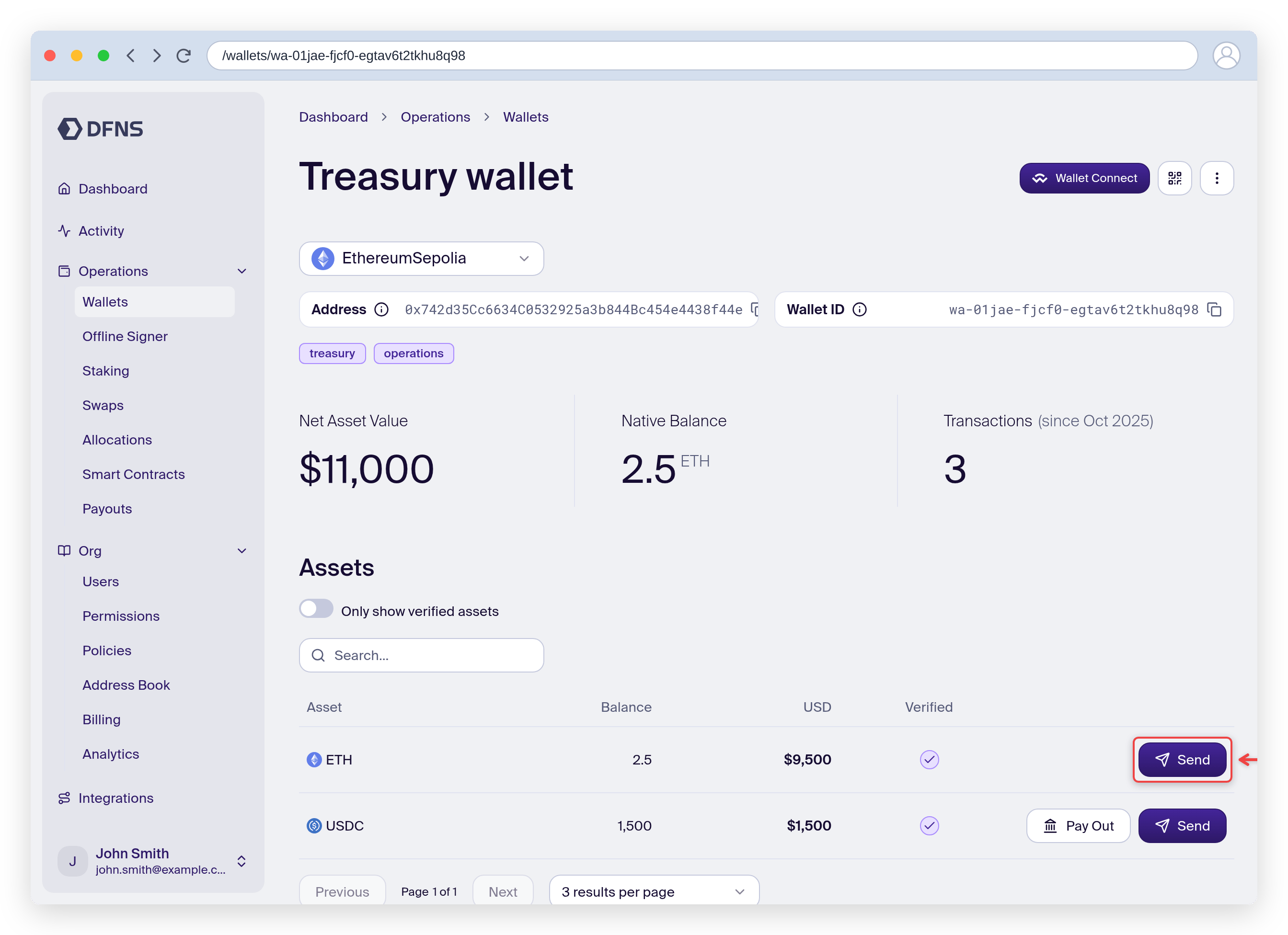 In the assets list, find the asset you want to transfer and click the **Send** button. This will open the transfer modal where you will enter the transaction details.
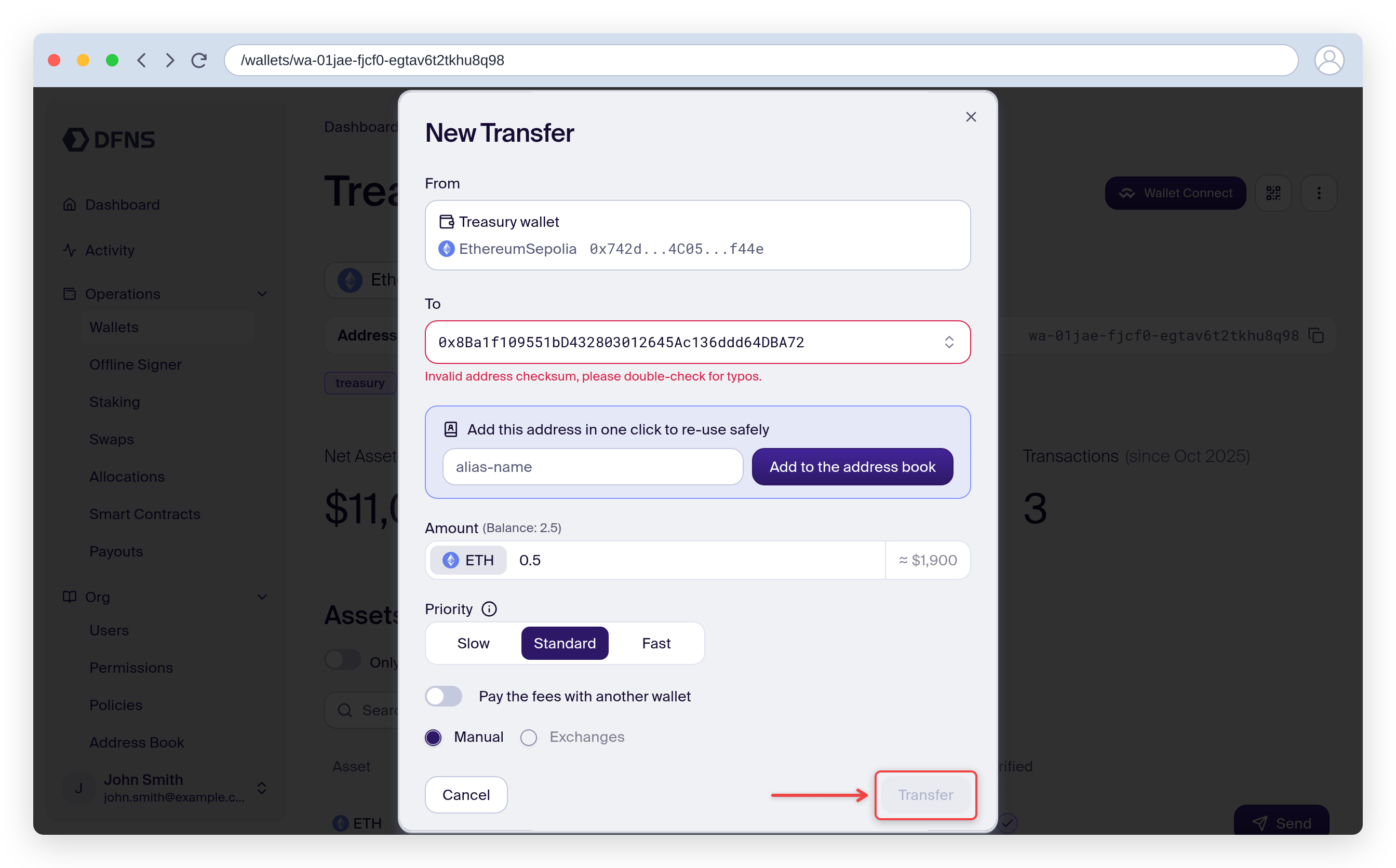
Fill in the following fields carefully:
* **To**: Paste the destination wallet address. Always double-check that the address is correct and corresponds to the correct blockchain network.
* **Amount**: Enter the amount of the asset you wish to transfer.
* **Pay the fees with another wallet**: You can chose to use our [Fee Sponsor](/features/fee-sponsors) feature for that transfer. In such case, select the sponsor.
**Review carefully** to ensure the asset, amount, and recipient address are all correct.
When you are ready, click **Transfer**.
In the assets list, find the asset you want to transfer and click the **Send** button. This will open the transfer modal where you will enter the transaction details.
Fill in the following fields carefully:
* **To**: Paste the destination wallet address. Always double-check that the address is correct and corresponds to the correct blockchain network.
* **Amount**: Enter the amount of the asset you wish to transfer.
* **Pay the fees with another wallet**: You can chose to use our [Fee Sponsor](/features/fee-sponsors) feature for that transfer. In such case, select the sponsor.
**Review carefully** to ensure the asset, amount, and recipient address are all correct.
When you are ready, click **Transfer**.
 **Important**
Transactions on the blockchain are irreversible. Once confirmed, you cannot cancel or reverse the transfer.
If your organization has security policies in place (e.g., requiring a manager's approval for transactions over a certain amount), your transfer will be placed in a **Pending** state.
You can then see your transfer at the top of the list. The status will update in real-time, moving from
```mermaid theme={null}
flowchart LR
P["Pending Approval\n(someone needs to approve your transfer)"]
E["Executing"]
B["Broadcasted"]
C["Confirmed"]
P --> E --> B --> C
style P fill:#fff3cd,stroke:#f0ad4e
style E fill:#d1ecf1,stroke:#17a2b8
style B fill:#cfe2ff,stroke:#0d6efd
style C fill:#d4edda,stroke:#198754
```
**Important**
Transactions on the blockchain are irreversible. Once confirmed, you cannot cancel or reverse the transfer.
If your organization has security policies in place (e.g., requiring a manager's approval for transactions over a certain amount), your transfer will be placed in a **Pending** state.
You can then see your transfer at the top of the list. The status will update in real-time, moving from
```mermaid theme={null}
flowchart LR
P["Pending Approval\n(someone needs to approve your transfer)"]
E["Executing"]
B["Broadcasted"]
C["Confirmed"]
P --> E --> B --> C
style P fill:#fff3cd,stroke:#f0ad4e
style E fill:#d1ecf1,stroke:#17a2b8
style B fill:#cfe2ff,stroke:#0d6efd
style C fill:#d4edda,stroke:#198754
```