> ## Documentation Index
> Fetch the complete documentation index at: https://docs.dfns.co/llms.txt
> Use this file to discover all available pages before exploring further.
# Verify your tokens
> Register your own token contracts as verified for your DFNS organization, so they count as legitimate assets in wallet search and KYT screening.
DFNS maintains a list of verified tokens. Any other token is unverified: anyone can mint a token under a legitimate name or symbol, so DFNS treats unverified tokens with caution. When you issue or use a token that DFNS has not verified, such as your own stablecoin or a less common asset, register it as verified for your organization.
A token you register is verified for your organization only. It counts as verified wherever DFNS separates verified from unverified assets:
* **Wallet balances**: your wallets' balances of the token are marked verified, including balances that existed before you registered it, so wallet search and asset filters treat it as a legitimate asset.
* **KYT screening**: transfers of the token are screened when your [Chainalysis](/integrations/aml-kyt/chainalysis) or [Elliptic](/integrations/aml-kyt/elliptic) integration is set to screen **Verified tokens only**.
Supported networks: EVM networks (ERC-20), Solana (SPL and Token-2022), and Tron (TRC-20).
## Prerequisites
* Token management enabled for your organization. If **Manage Tokens** shows that custom token management is not enabled, contact DFNS.
* The `Registry: Verified Assets` permissions: `Read` to view the list, `Create` to add a token, `Delete` to remove one (see [Roles and permissions](/core-concepts/roles-and-permissions#registry)).
## Add a token
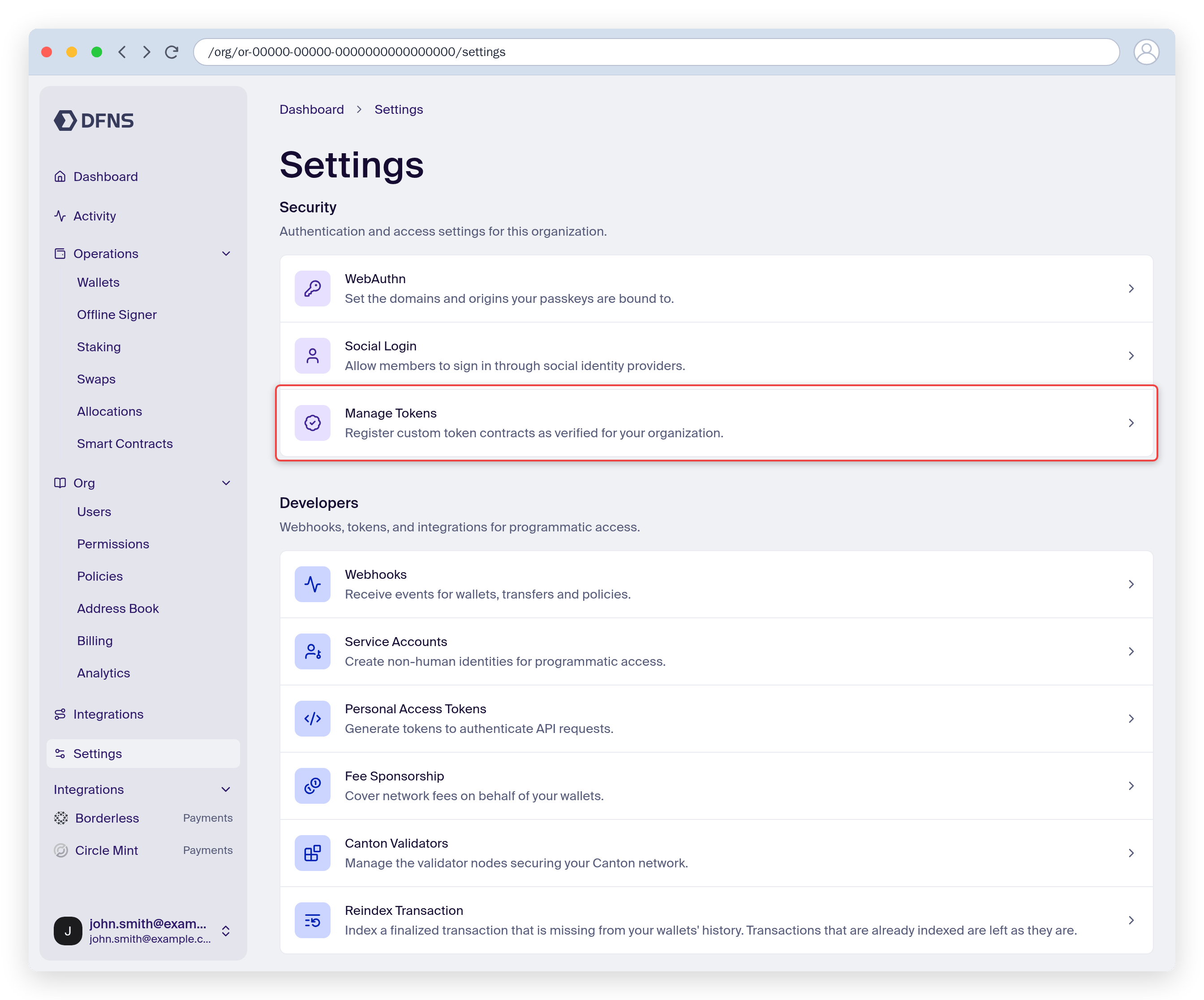
Navigate to **Settings** and open **Manage Tokens**.
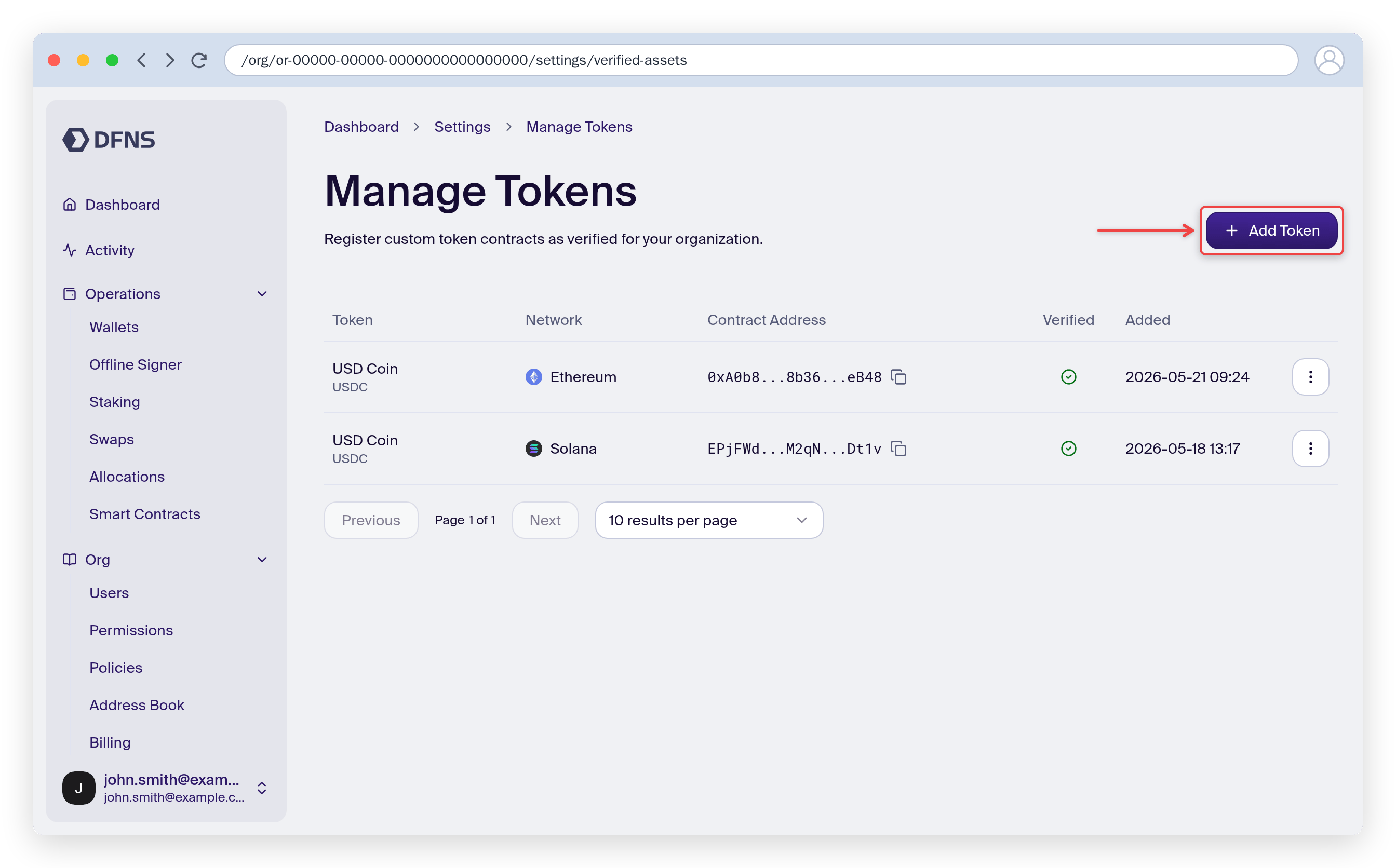
 The page lists the tokens your organization registered. Click **Add Token**.
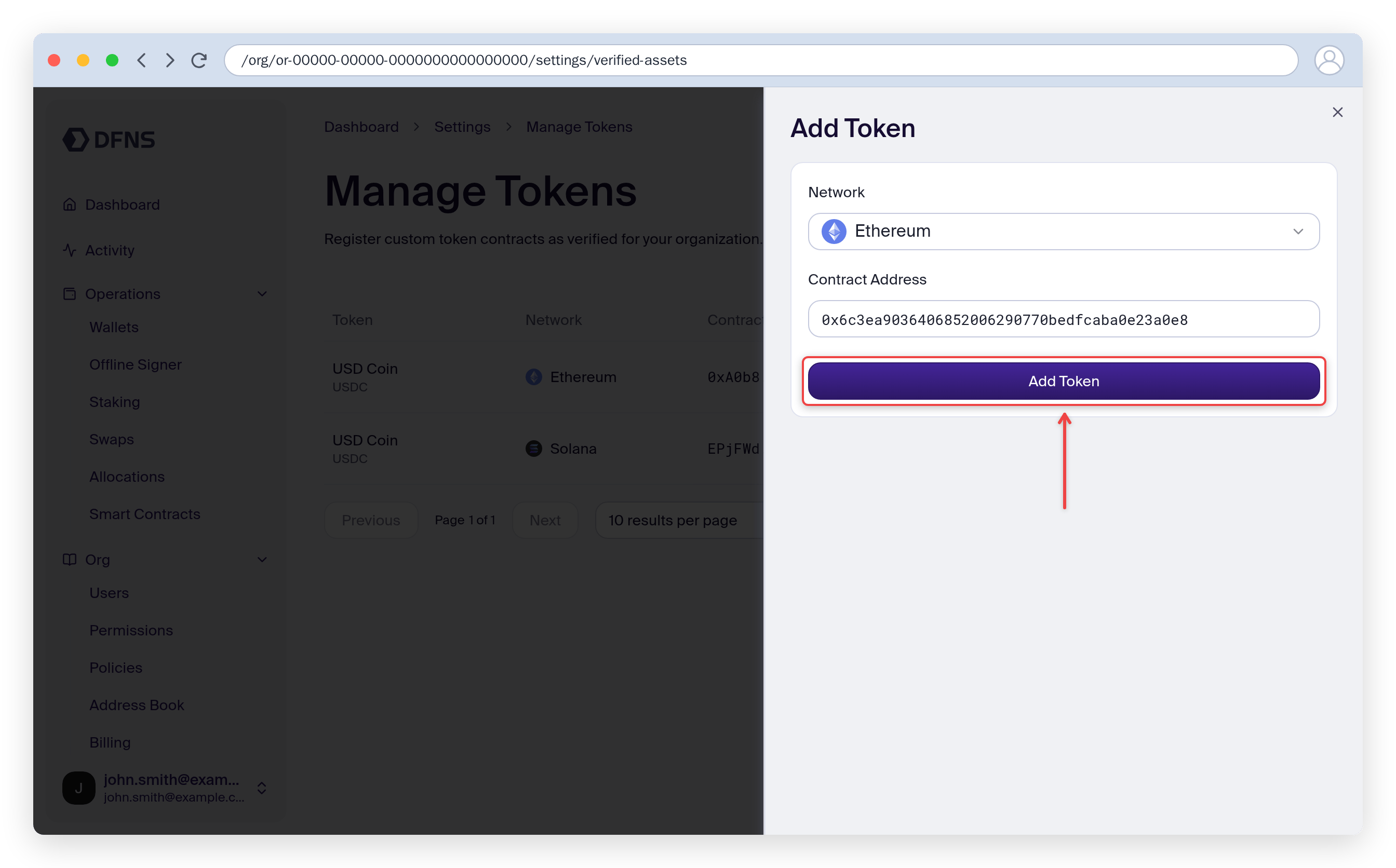
 In the **Add Token** panel, select the **Network** and paste the token's **Contract Address** (the mint address on Solana). Click **Add Token** and 🔑 sign the request.
 DFNS reads the token's name and symbol from the contract on chain. The token is rejected when:
* DFNS already verifies it. There is nothing to register.
* your organization already registered it on this network.
* the contract does not declare a name on chain.
The token now appears in the list with its name, symbol, network, contract address, and the date it was added.
## Remove a token
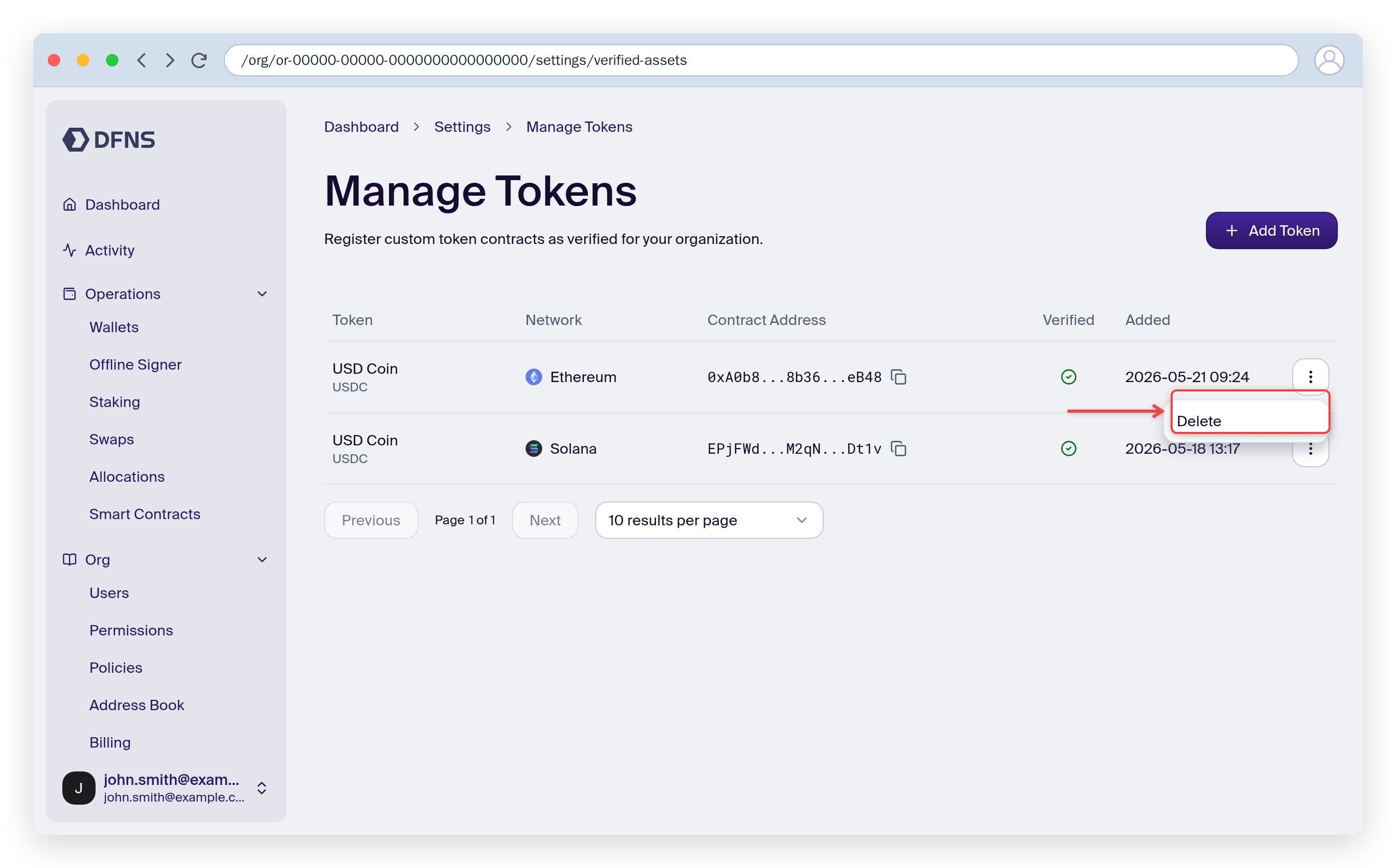
Open the token's action menu in the list, click **Delete**, and confirm. The token falls back to the DFNS verification status: it stays verified only if DFNS verifies it.
DFNS reads the token's name and symbol from the contract on chain. The token is rejected when:
* DFNS already verifies it. There is nothing to register.
* your organization already registered it on this network.
* the contract does not declare a name on chain.
The token now appears in the list with its name, symbol, network, contract address, and the date it was added.
## Remove a token
Open the token's action menu in the list, click **Delete**, and confirm. The token falls back to the DFNS verification status: it stays verified only if DFNS verifies it.
 ## Require approval for token changes
Registering a token decides which assets your organization and your screening treat as legitimate. To require approval, or to block changes, create [user-action policies](/api-reference/policies#useraction-activity) on `CreateVerifiedAsset` and `DeleteVerifiedAsset`. A change held by a policy applies once the approval completes.
## Related guides
How verified assets protect you from spam tokens
Browse wallet assets and history
This documentation is built and hosted on [Mintlify](https://mintlify.com), a developer documentation platform.
## Require approval for token changes
Registering a token decides which assets your organization and your screening treat as legitimate. To require approval, or to block changes, create [user-action policies](/api-reference/policies#useraction-activity) on `CreateVerifiedAsset` and `DeleteVerifiedAsset`. A change held by a policy applies once the approval completes.
## Related guides
How verified assets protect you from spam tokens
Browse wallet assets and history
This documentation is built and hosted on [Mintlify](https://mintlify.com), a developer documentation platform.