

Need managed custody with segregated balances, compliance holds, and an audit trail instead of direct wallet control? See Manage vaults, and compare the two models in Vaults, wallets & keys.
Creating a wallet
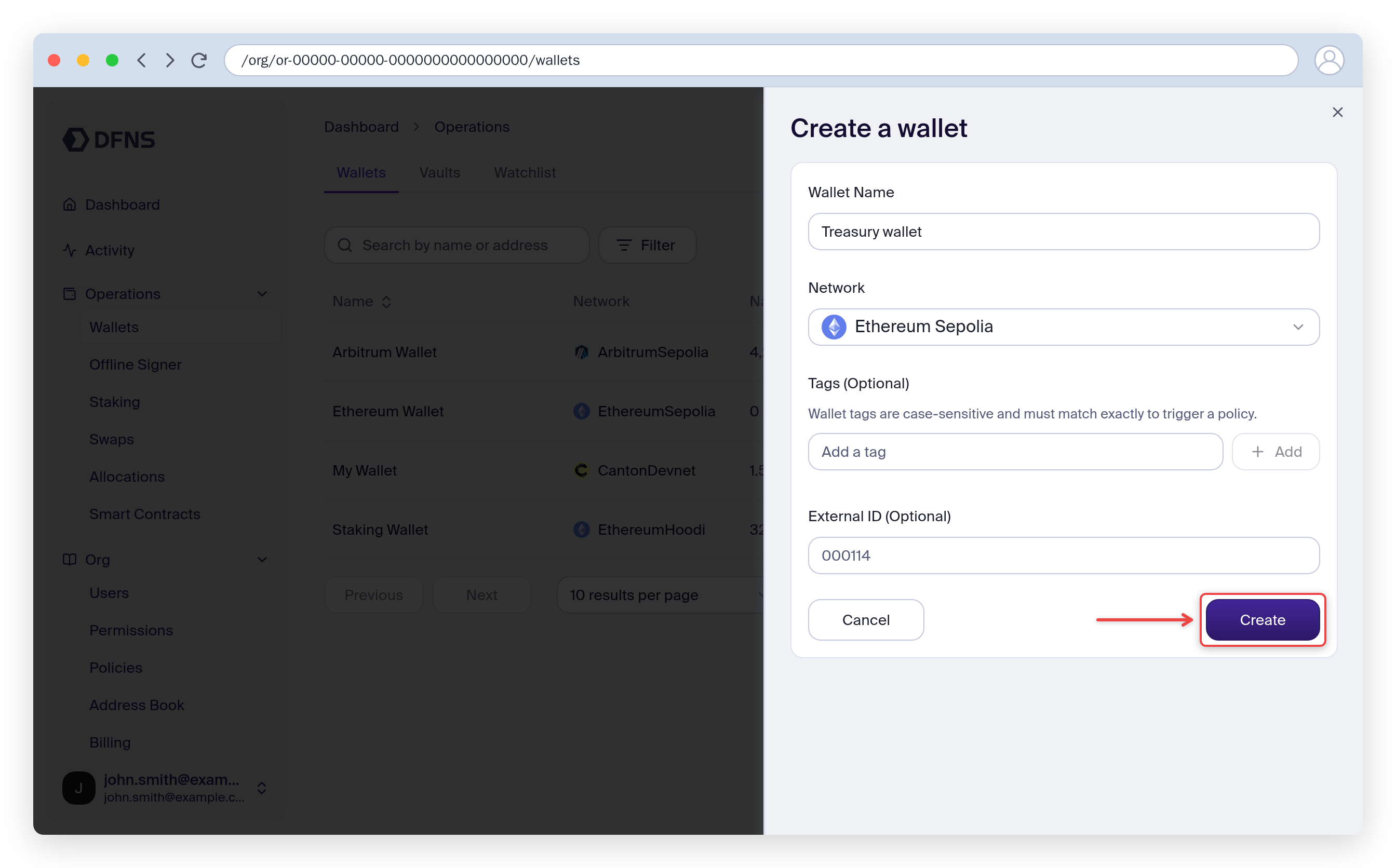
- Navigate to Wallets in the sidebar
- Click Create Wallet
- Enter a name for the wallet
- Select the network for your wallet (e.g., Ethereum, Polygon, Bitcoin)
- (Optional) Add tags or an external ID
- Click Create
DFNS uses MPC (Multi-Party Computation) to secure your wallets. There’s no single private key - the signing capability is distributed across multiple secure nodes.
Adding a network to an existing wallet
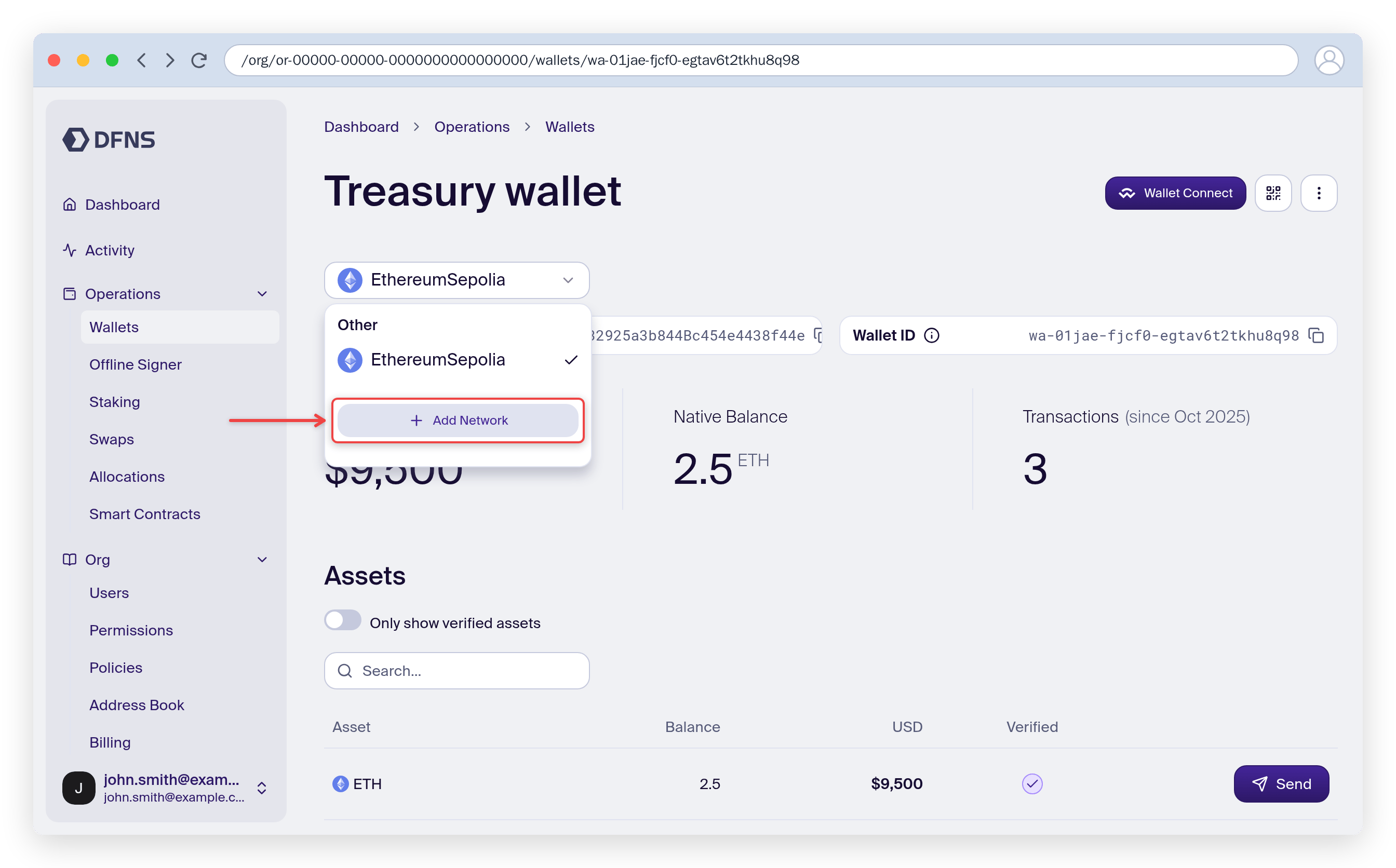
If your wallet’s key supports multiple networks (e.g., EVM chains share the same key type), you can add additional networks:- Navigate to Wallets and select the wallet
- Open the network selector at the top and click Add Network
- Select the network to add
- Confirm the addition
Not all networks are compatible with all key types. The dashboard only shows networks that are compatible with your wallet’s key.
Naming and tagging wallets
Open a wallet, click the actions menu (⋯) in the top-right, and select Edit to open the edit panel. From there you can rename the wallet and manage its tags.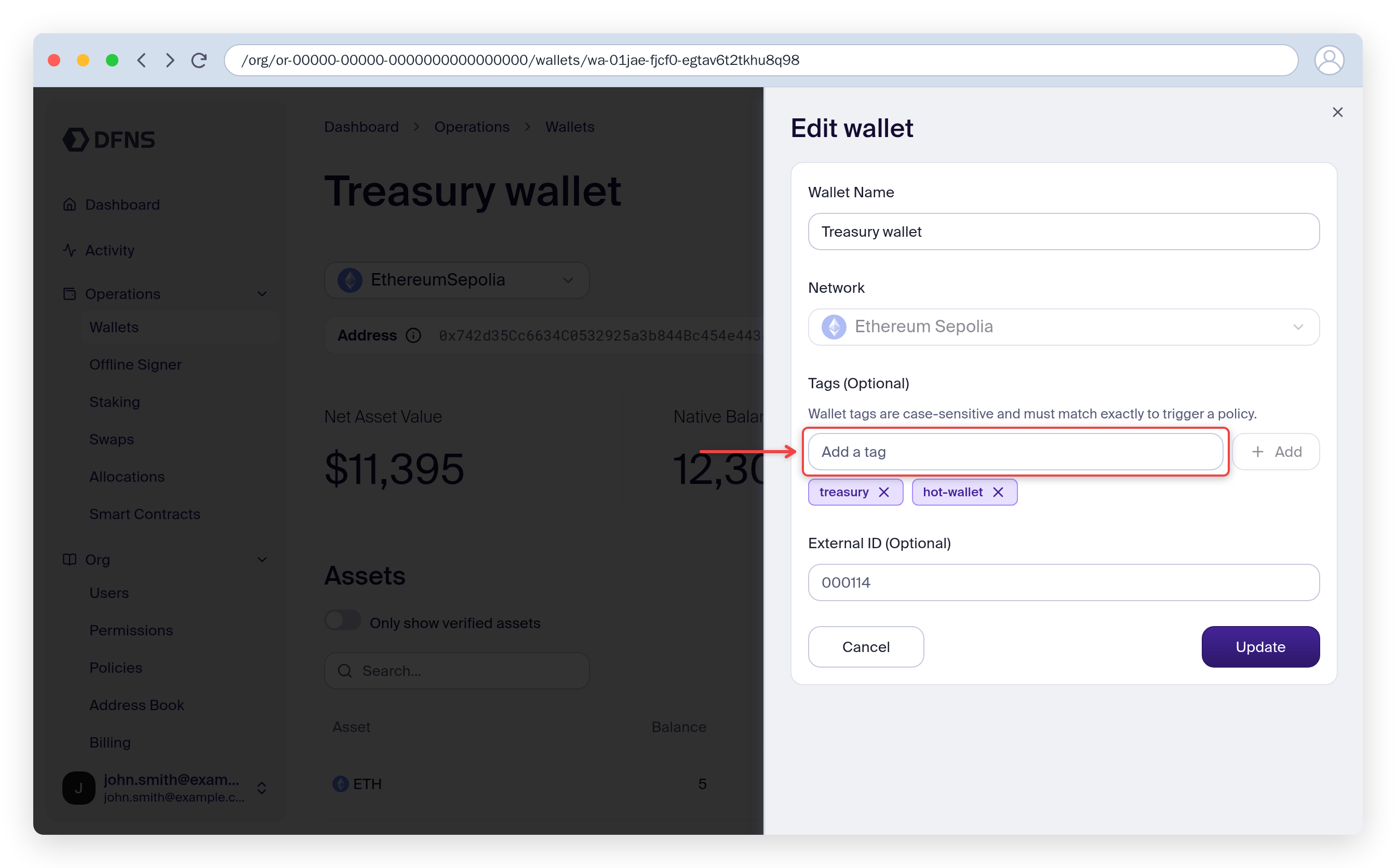
Renaming a wallet
In the edit panel, change the Wallet Name and click Update.Adding tags
Tags help you organize wallets and target them with policies. In the edit panel, type a tag in the Tags field and click Add, then Update. Tags are case-sensitive and must match exactly to trigger a policy. Tags drive policy scope, so changing a wallet’s tags can take it in or out of a policy. To require approval for tag changes, create user-action policies onTagWallet and UntagWallet. A held change applies once the approval completes.
Finding wallets
Use the Search box above the wallet list to find wallets by name, address, or tag. Click a tag on a wallet row to filter the list by that tag, and click it again to clear the filter. On a wallet’s page, click a tag to open the list filtered by it.Viewing wallet details
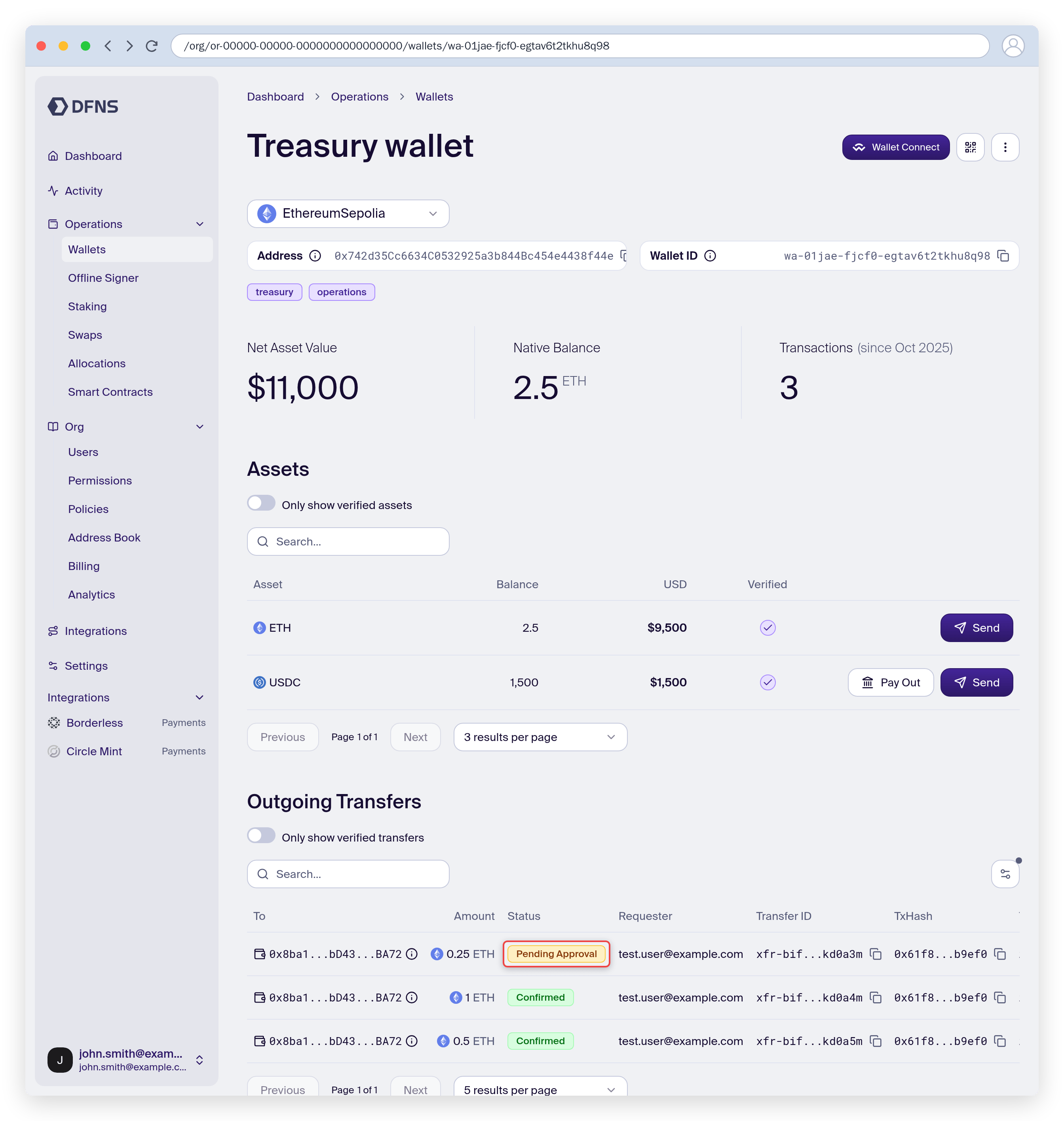
Click on any wallet to open its detail page, which shows:- Address - The wallet’s blockchain address
- Networks - Switch networks from the selector at the top
- Assets - Token balances on the selected network
- Outgoing Transfers and History - Transaction activity
- Tags - Tags assigned to this wallet
Viewing balances
The Assets section shows:- Native token balance (ETH, MATIC, etc.)
- ERC-20 token balances
- NFTs (on supported networks)
Viewing transaction history
The History section lists incoming and outgoing transactions, each with a direction (In/Out), status (pending, confirmed, failed), timestamp, and a link to the block explorer. Toggle Only show verified transactions to hide activity involving unverified assets.Exporting transaction history
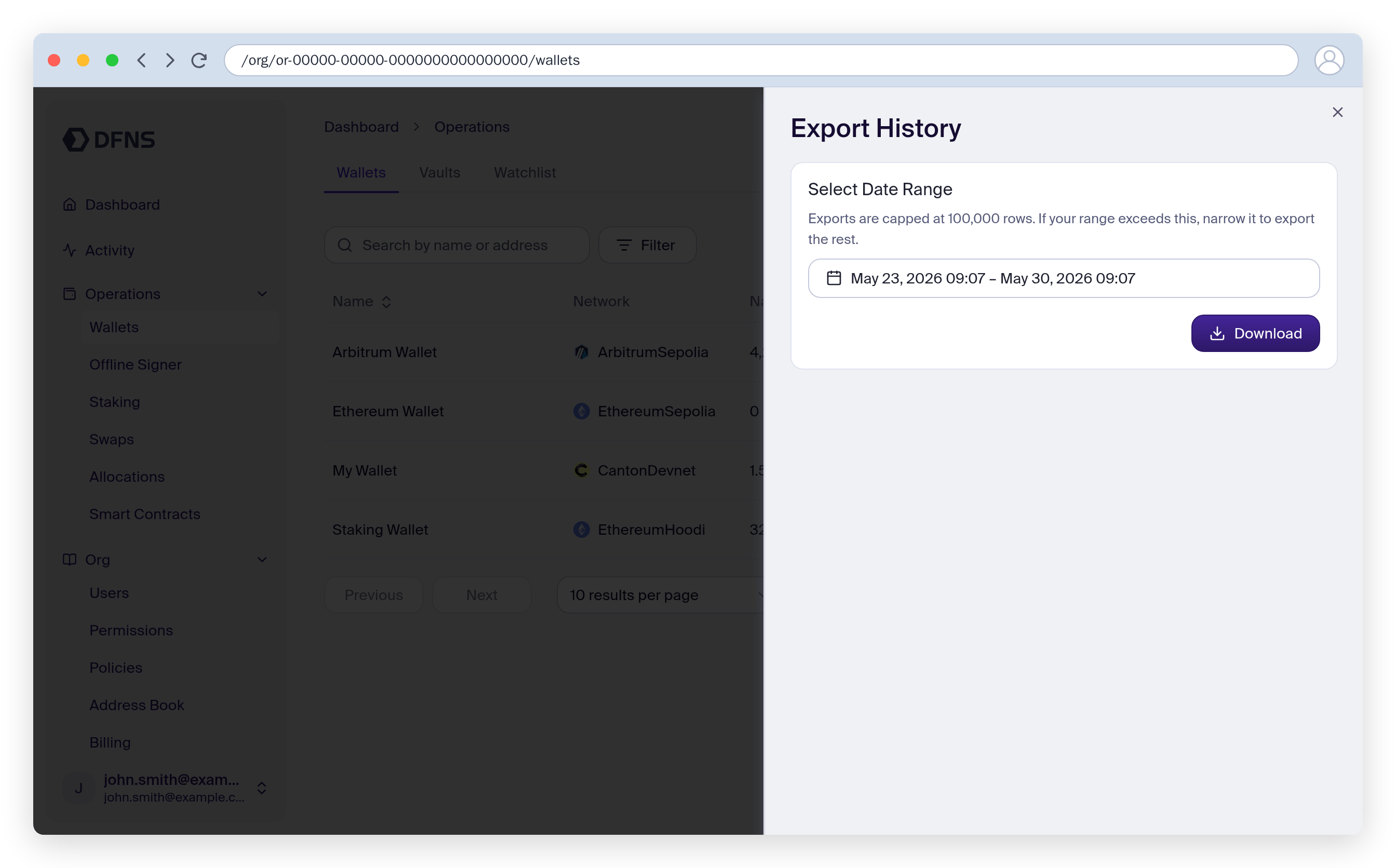
To export transaction history as a CSV:- Navigate to Wallets
- Open the actions menu (⋯) next to Create Wallet and select Export History
- Choose a date range (up to 7 days)
- Click Download
For developers
To manage wallets programmatically, see:Create wallets via API
Wallet creation and management
Wallets API
Complete API reference
Related guides
Transfer assets
Send transfers from your wallets
Use the address book
Save and manage recipient addresses
Create policies
Apply policies to your wallets