

Supported networks
WalletConnect is available for wallets on:
If your wallet’s network supports WalletConnect, you’ll see the WalletConnect option on the wallet page.
Connecting to a dApp
1
Open your wallet
Navigate to your wallet in the DFNS dashboard.
2
Open WalletConnect
Click the WalletConnect button on your wallet page.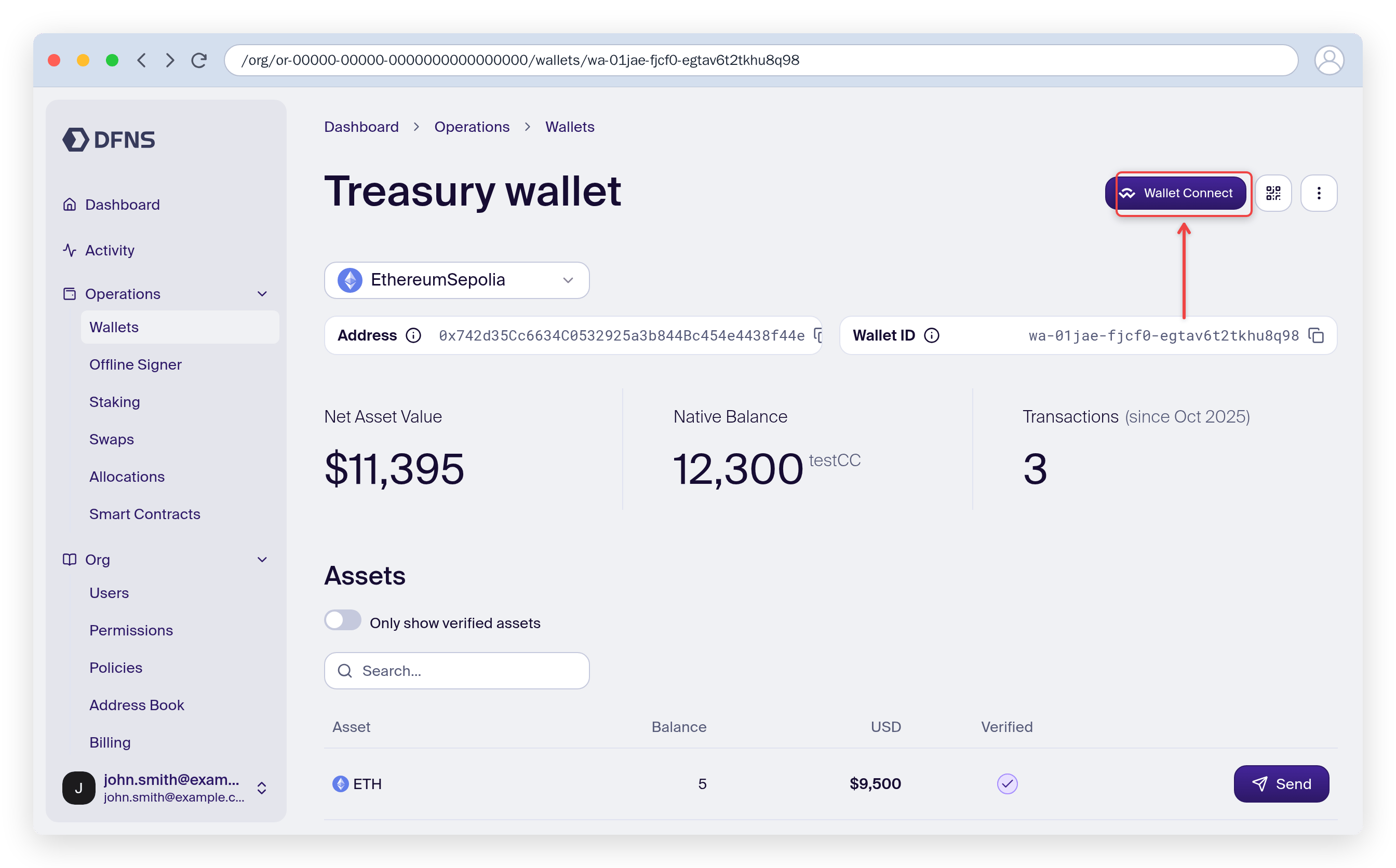
3
Copy the URI from the dApp
In the external application you want to connect to, look for a “Connect Wallet” option and select WalletConnect. The dApp will display a connection URI or QR code. Copy the URI.
4
Paste the URI
Paste the WalletConnect URI into the DFNS dashboard input field and confirm the connection.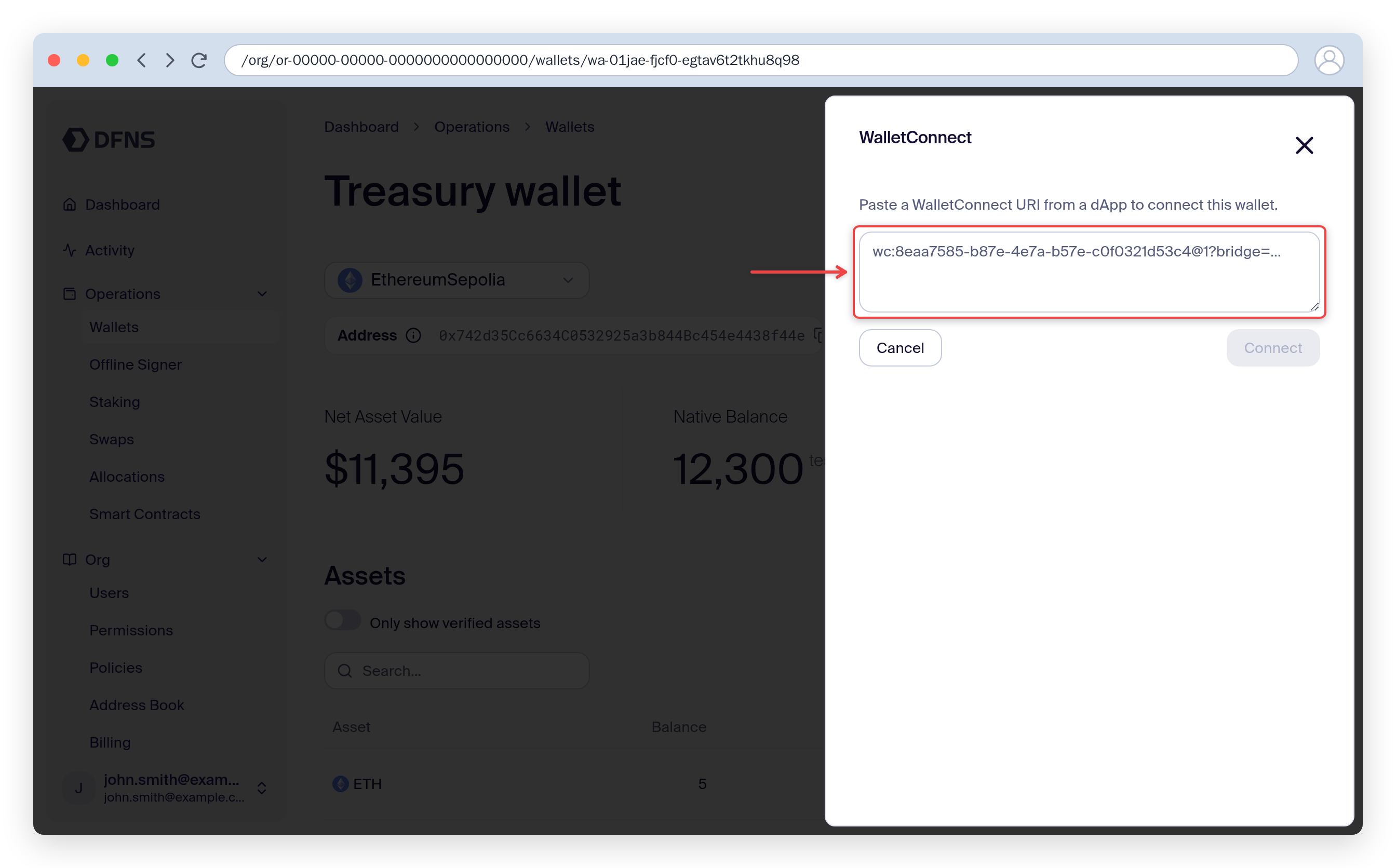
5
Review and approve the session
The dashboard will show the dApp’s details (name, URL) and the requested permissions. Review and approve the connection.
Approving requests
Once connected, the dApp can send signature or transaction requests. When a request arrives:- A notification appears in the dashboard
- Click on the pending request to review the details
- Approve or reject the request. Approved requests are signed with your DFNS wallet’s key
Managing sessions
Active WalletConnect sessions are listed on the wallet page. You can:- View connected dApps and their details
- See pending signature requests
- Disconnect a session at any time
Limitations
- WalletConnect is a dashboard-only feature. It is not available via the API
- Each session is tied to a specific wallet
- Only available on networks that support WalletConnect (see above)