

Viewing pending approvals
Dashboard
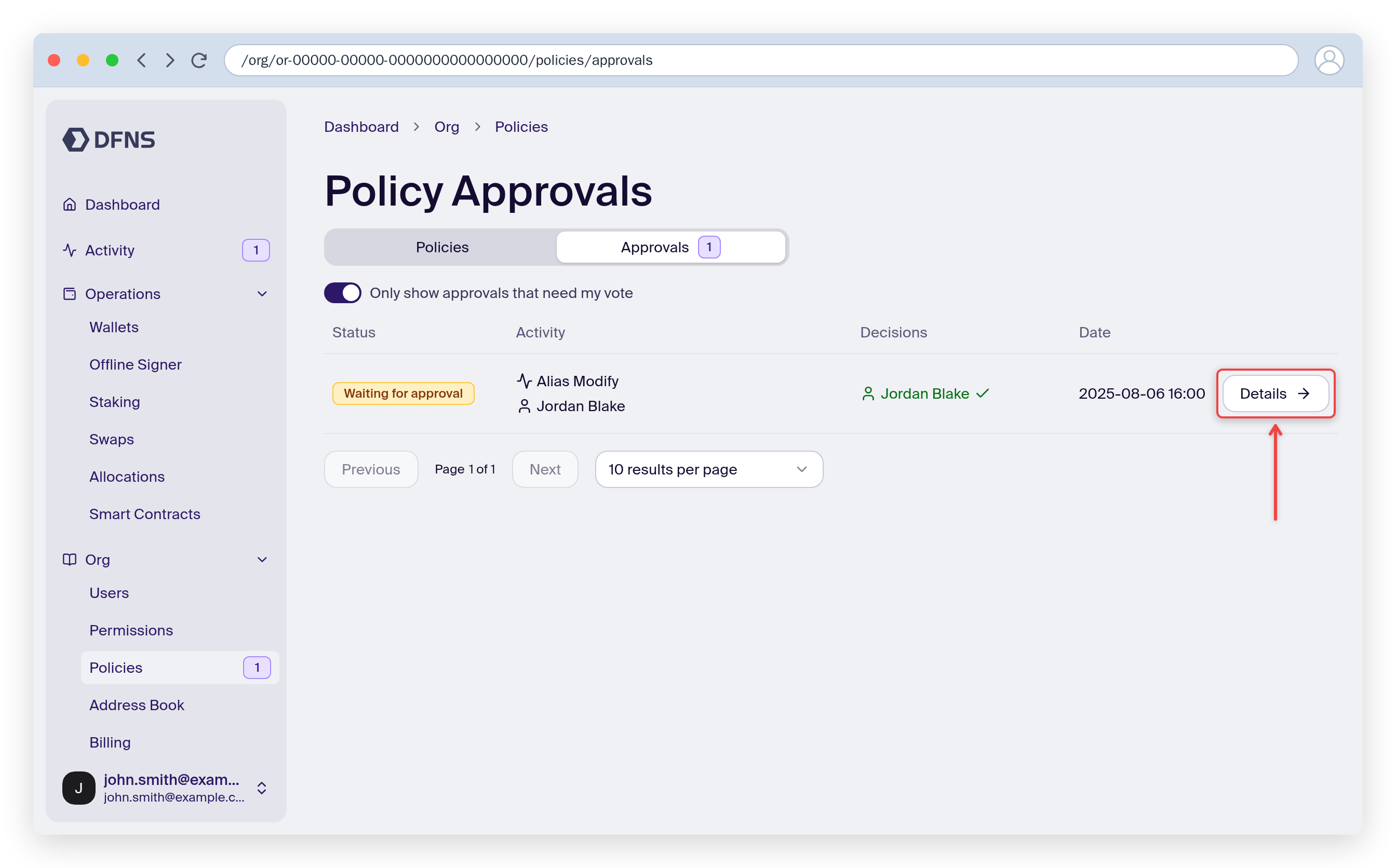
- Navigate to Policies in the sidebar and open the Approvals tab
- Each row shows the request’s Status, the Activity and who initiated it, the Decisions already cast, and the Date. Each decision names the approver with an icon for approved or rejected, so you see at a glance who has voted.
- Turn on Only show approvals that need my vote to hide requests you cannot or no longer need to vote on.
Notifications
Depending on your organization’s configuration, you may receive notifications when approvals are pending:- Slack/Teams - Via Zapier integration
- Webhooks - The
policy.approval.pendingevent fires when approval is needed
Reviewing a pending transaction
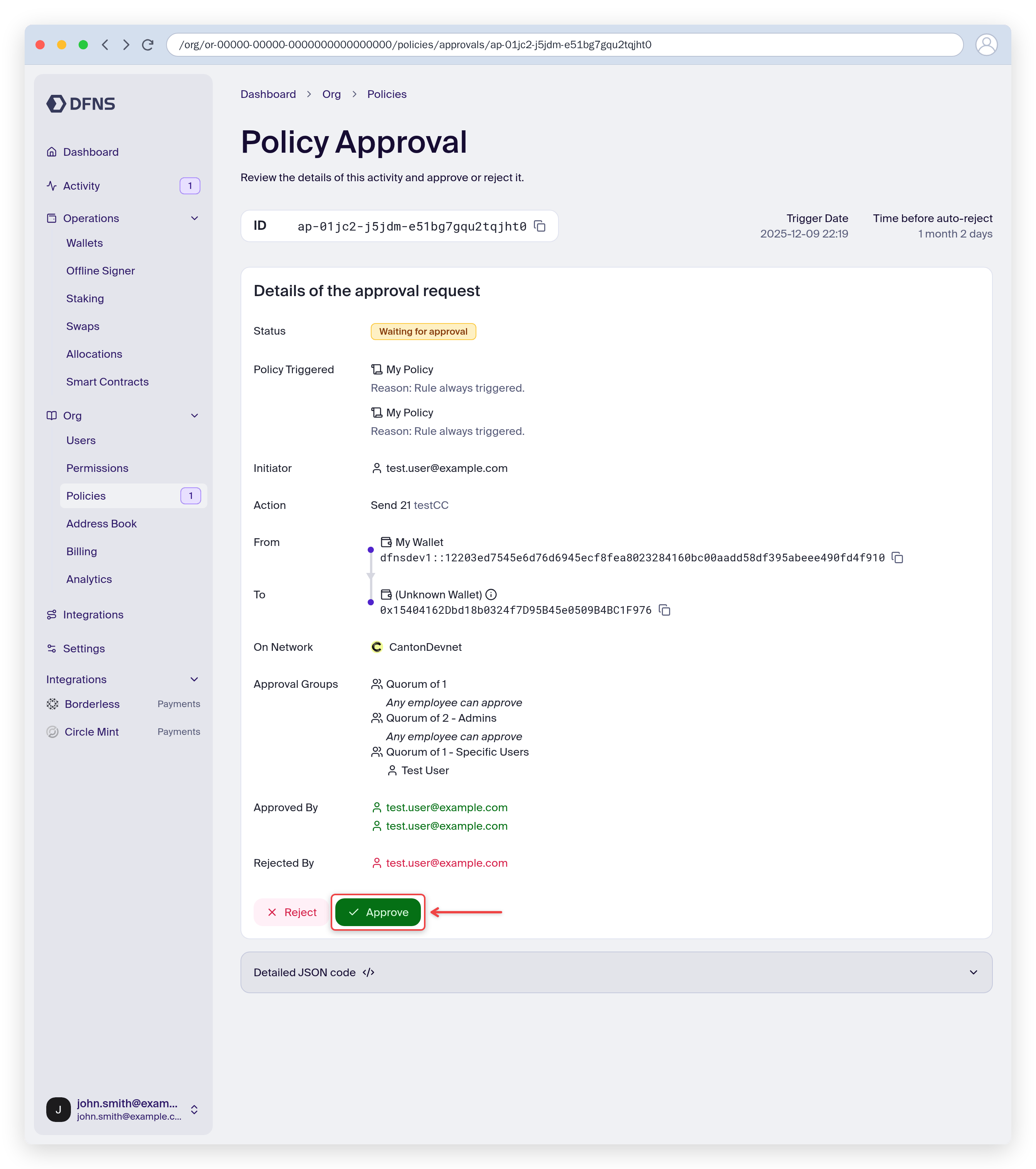
Before approving, review the transaction details:- Click on the pending approval to open details
- Review:
- Initiator - Who requested the transaction
- Wallet - Which wallet is involved
- Type - Transfer, transaction, or signature
- Recipient - Destination address
- Amount - Value being transferred
- Policy - Which policy triggered the approval requirement
- Other approvers - Who else needs to approve (for multi-sig)
Approving a transaction
- Open the pending approval
- Review all transaction details
- Click Approve
- 🔑 Sign the approval with your passkey
- If quorum is met (e.g., 2-of-3 approved), the transaction executes
- If more approvals are needed, the transaction stays pending
- The initiator cannot approve their own transaction (unless specifically allowed by policy)
Rejecting a transaction
If a transaction looks incorrect or suspicious:- Open the pending approval
- Review the transaction details
- Click Reject
- Optionally provide a reason for rejection
- 🔑 Sign the rejection with your passkey
- The transaction is cancelled
- The initiator receives notification
- The rejection and reason are logged for audit
Approval timeouts
Policies can configure an auto-reject timeout. If approvers don’t act within the timeout:- The transaction is automatically rejected
- No manual action is needed
- The timeout is shown on the pending approval
Quorum requirements
Multi-signature policies require a specific number of approvals (quorum):
When an approval group names a user group, any current member of the group can vote. Membership is read at each vote: someone added to the group while the request is pending can approve it.
The approval status shows:
- How many approvals are needed
- How many have been received
- Who has already approved
Multiple approval groups
Some policies require approval from multiple groups. For example:- 1 approval from Operations AND
- 1 approval from Compliance
For developers
To manage approvals programmatically, list pending items withGET /v2/policy-approvals, then approve or deny one with POST /v2/policy-approvals/{approvalId}/decisions, passing a body of { "value": "Approved" } or { "value": "Denied" }.
The permission required to approve or reject an approval is
Policies:Evaluations:Vote. Policies:Approvals:Approve is a deprecated alias — it still resolves through migration, but don’t use it in new roles.Approvals API
List and process approvals via API
Set up webhooks
Get notified of pending approvals
Related guides
Create policies
Set up approval requirements
Transfer assets
Initiate transfers
Security best practices
Secure your approval workflows