Policies are a programmable set of safeguards behind all actions on the DFNS infrastructure. You can configure them to validate actions taken in your organization. For more details, please read the dedicated section: policy-engine
Pro tip: initial policies you should createWe recommend setting up three initial Policies in order to lock down your organization:
  1. Permission Assignment: requiring quorum approval before assigning permissions to any user or user group. This way a rogue admin cannot create fake users with elevated permissions by himself.
  2. Permission Modification: ensure permission sets cannot be modified without quorum approval, to prevent a rogue actor to elevate existing roles by whitelisting extra actions.
  3. Policy Modification: a policy preventing to change policies. That’s to make sure your established policies stay in place and a quorum approval is required for modifications. Those are actually the first 3 options available when you follow the policy creation flow on the dashboard.
In this example, we are going to control transactions whitelisting specific recipient addresses, and requiring approvals for others.
1

Create a new Policy

On the dashboard, head to Org > Policies (direct link: https://app.dfns.io/policies) and click ➕ Create Policy. The wizard opens on the Name step: give your policy a descriptive name, then click “Continue”.
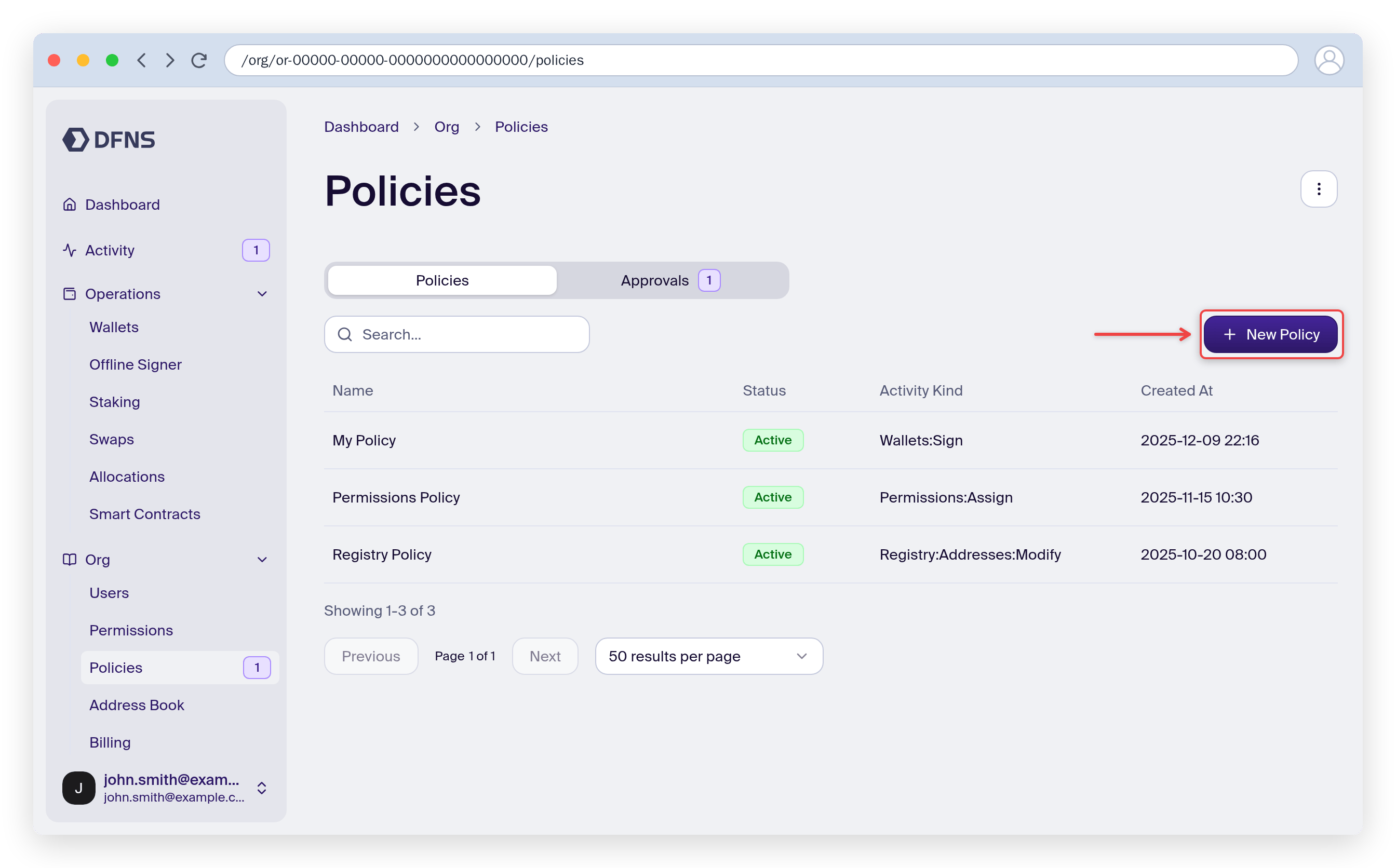
Policies page with the Create Policy button highlighted
2

Select the targeted activity

What should the policy apply on? For our example, select “Wallet usage (transfer, transaction, signature)”. You can leave the optional “Entity Filter” step empty to apply the policy to all wallets.
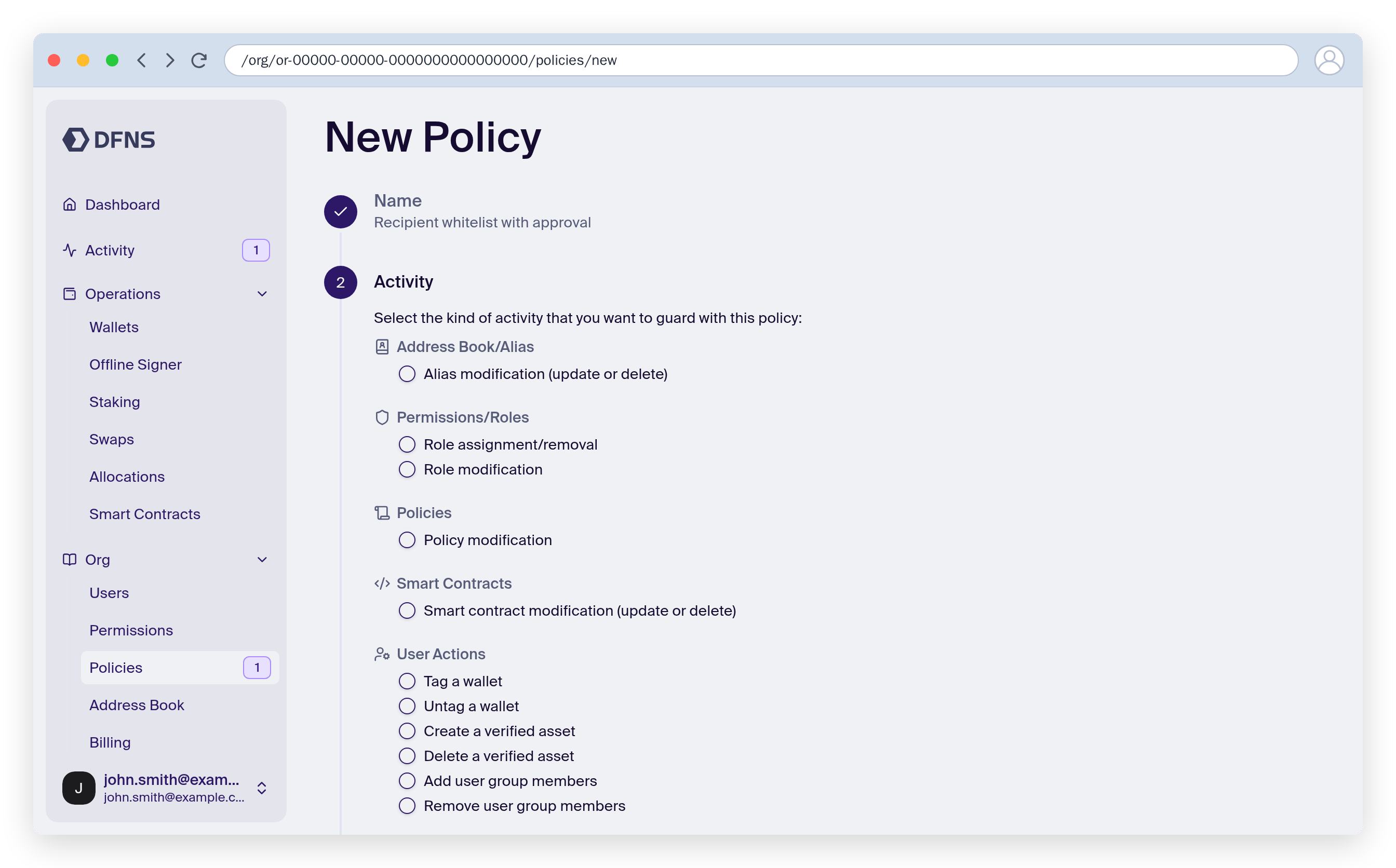
Policy wizard Activity step with Wallet usage highlighted
3

Select the criteria to evaluate

In which case should the policy trigger? For our example, select “Transaction recipient whitelist”, then click “Add Addresses” and paste the whitelisted destination wallet address. All transactions to this wallet address will go through, while all others will trigger the policy.
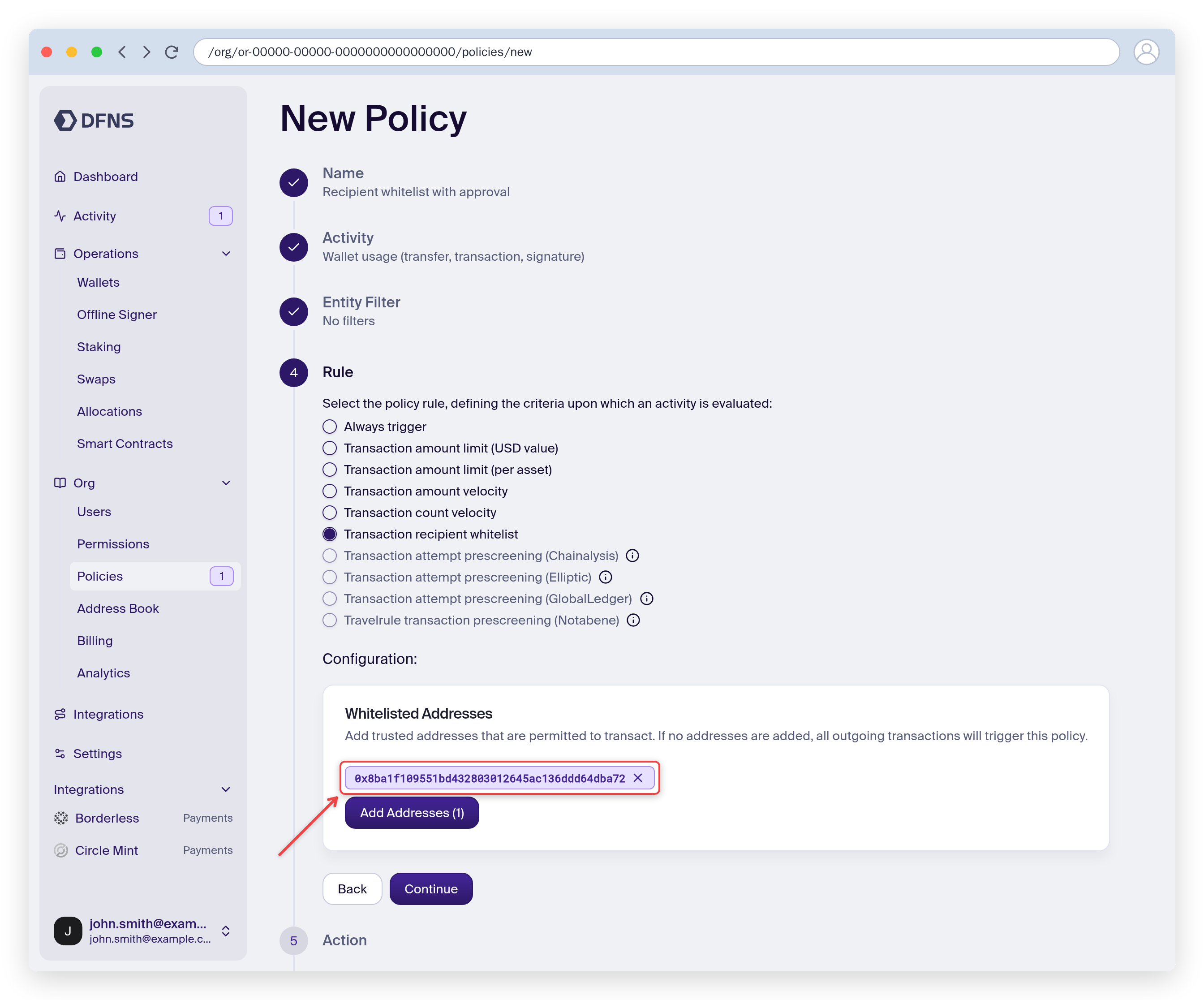
Policy wizard Rule step with a whitelisted address configured
4

Select the action to take

When a transaction triggers the policy filters, then there are different actions you can take. In our case, we’ll request approval from another employee. Select “Request Approval”, name the approval group, and set the Quorum Number (the number of approvals required, here 1). With no approver selected, every employee who holds the vote can approve.
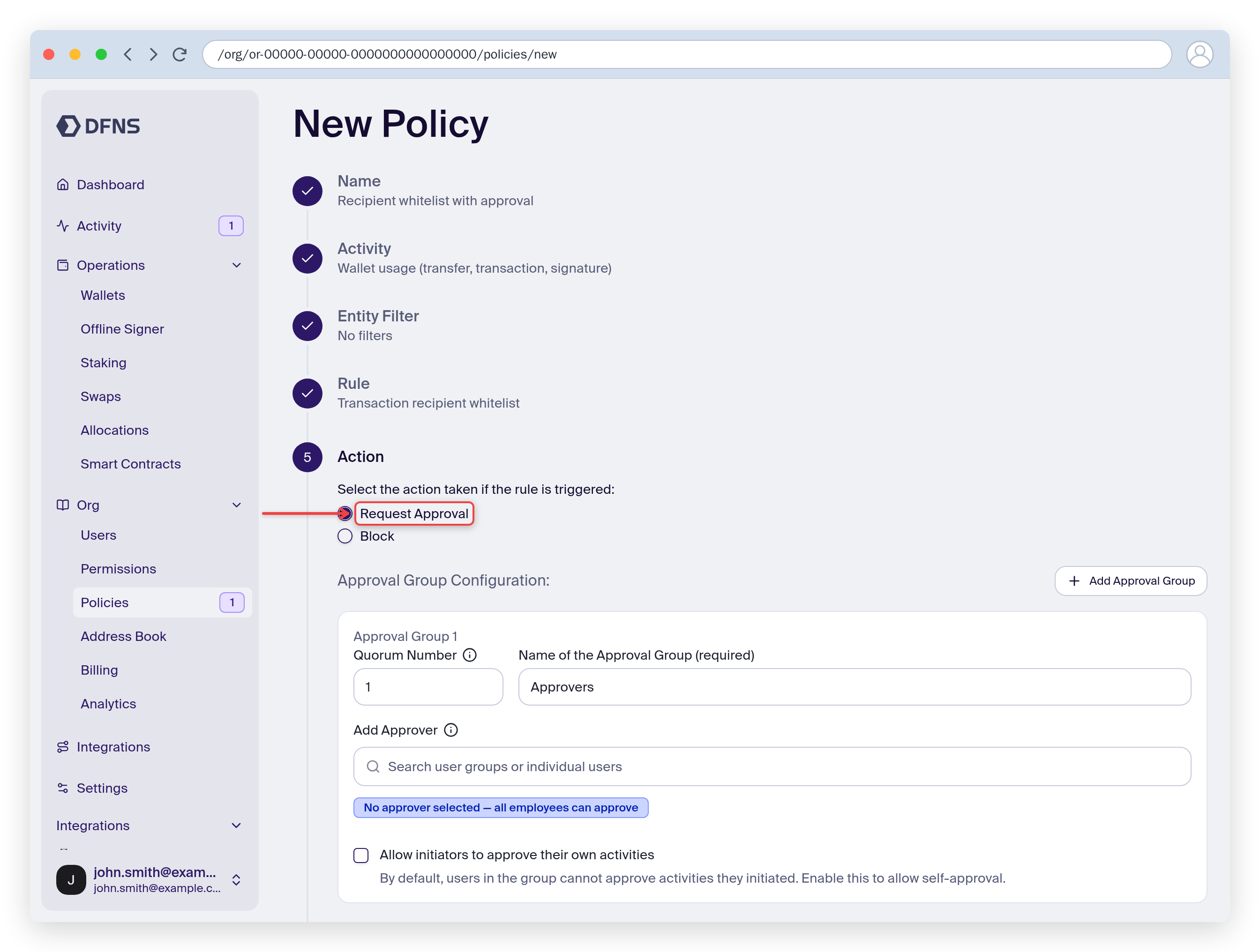
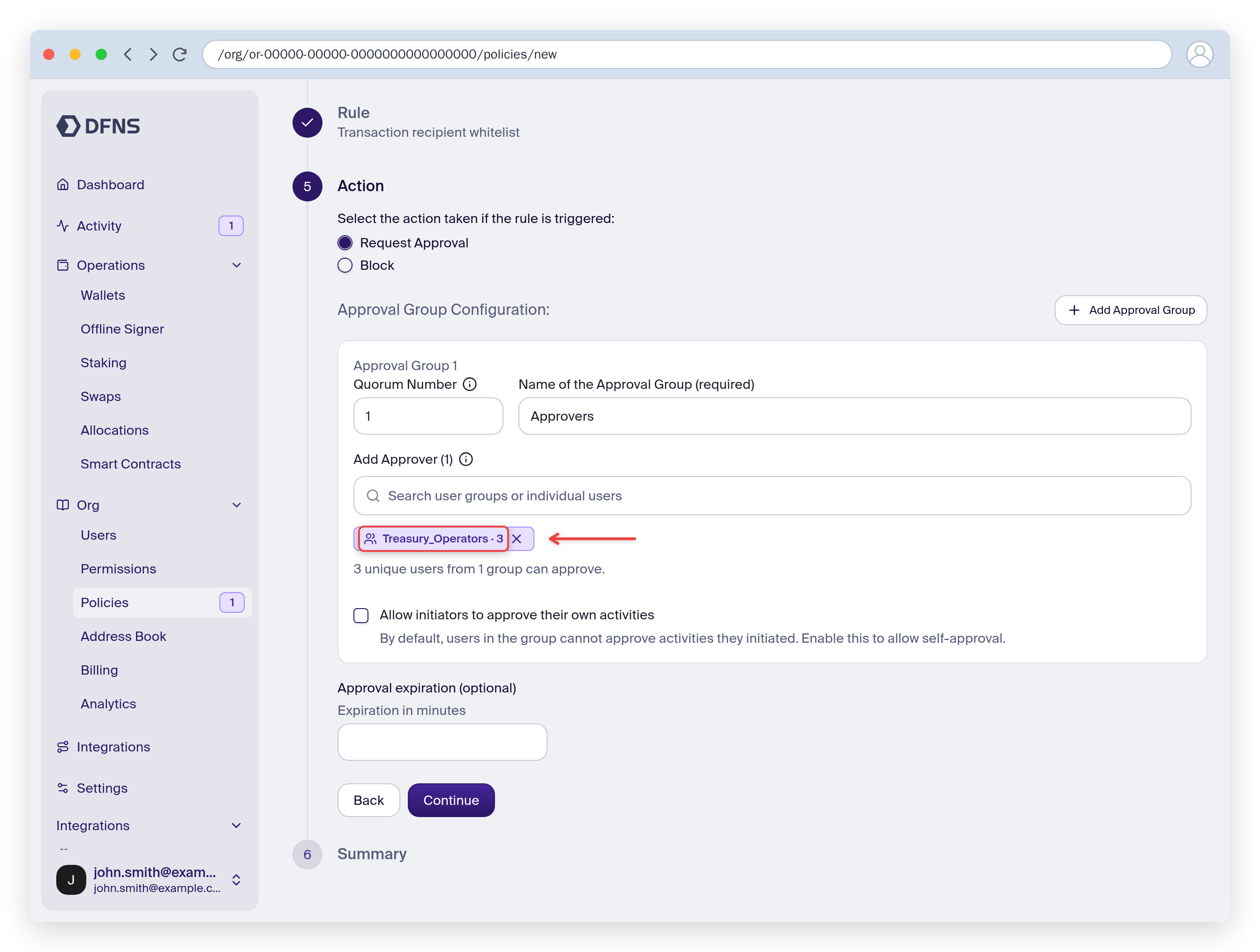
By default, the user triggering the action cannot approve it. Make sure the approvers are not the same users who will issue the requests, or tick “Allow initiators to approve their own activities”.
Policy wizard Action step with Request Approval and an approval group
To narrow who can approve, search the Add Approver field. It lists your user groups above individual users, and shows how many unique users can approve once you select a group. Prefer a user group: approvals follow its membership, so you don’t edit the policy when your team changes.
Add Approver picker with a user group selected as approver
The quorum cannot exceed the number of people the selected approvers resolve to, and each selected user or group must hold the Policies:Evaluations:Vote permission. For a group, assign it a role that includes this permission. Add more approval groups with Add Approval Group to require sign-off from several teams.
5

Finish the configuration

Continue to the Summary step, review the policy, then click Save and 🔑 sign the request with your passkey.
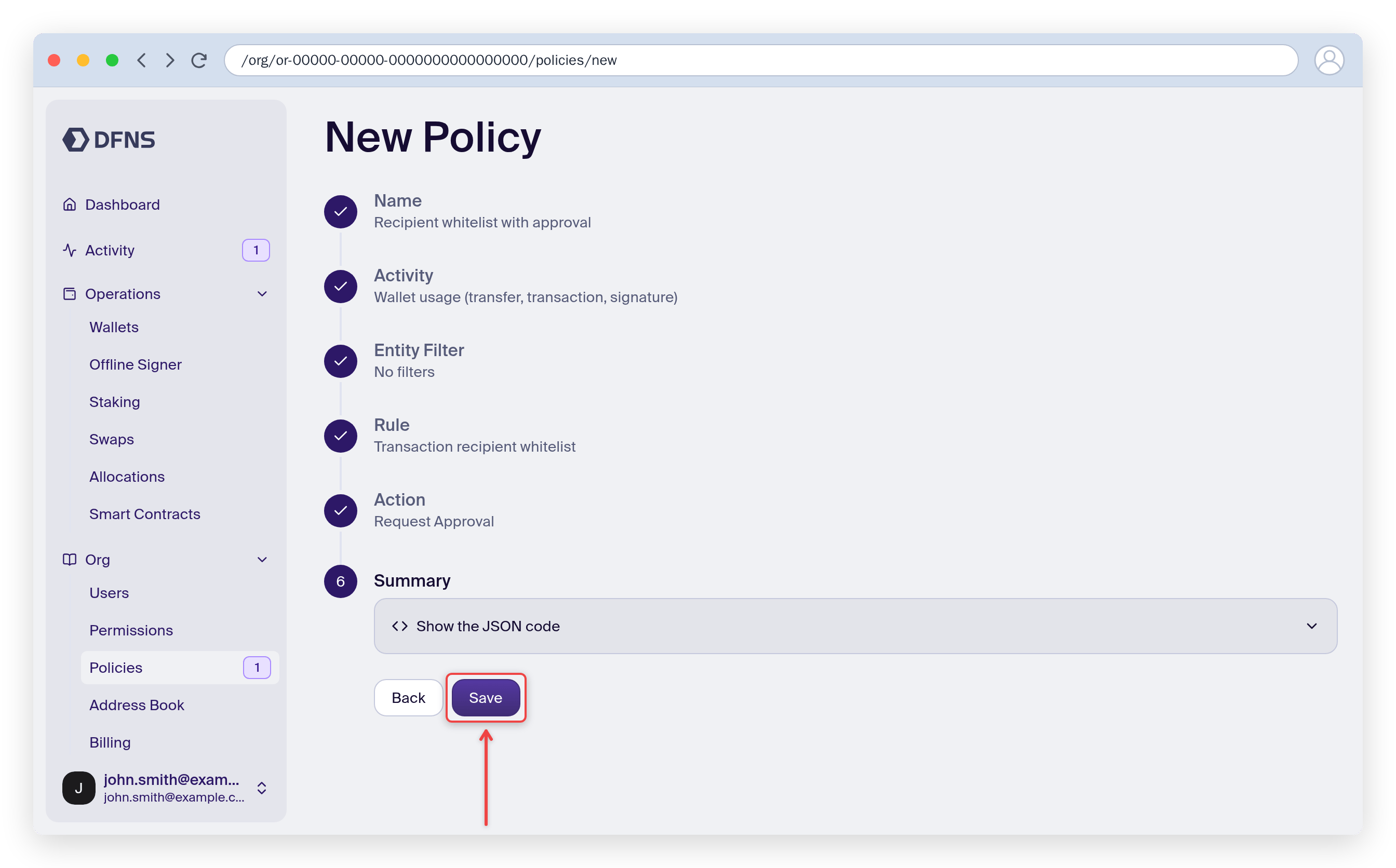
Policy wizard Summary step with the Save button highlighted
You’ve created a policy requiring approval from your coworker on transaction requests, except transfers to the designated wallet. Refine these rules and add as many as you need to match your internal policies and safeguards.
Last modified on October 16, 2026