

Key Takeaways:
- Users are individuals invited to your DFNS organization.
- Roles are collections of permissions that define what a user can see and do.
- User groups bundle users under one name: roles assigned to a group apply to all its members, and a policy can name the group as approver instead of a fixed list of users.
- Best Practice: Grant users the minimum permissions necessary for their job (principle of least privilege).
Manage users
You can easily invite new team members to your DFNS organization and manage their access directly from the dashboard.Invite a new user
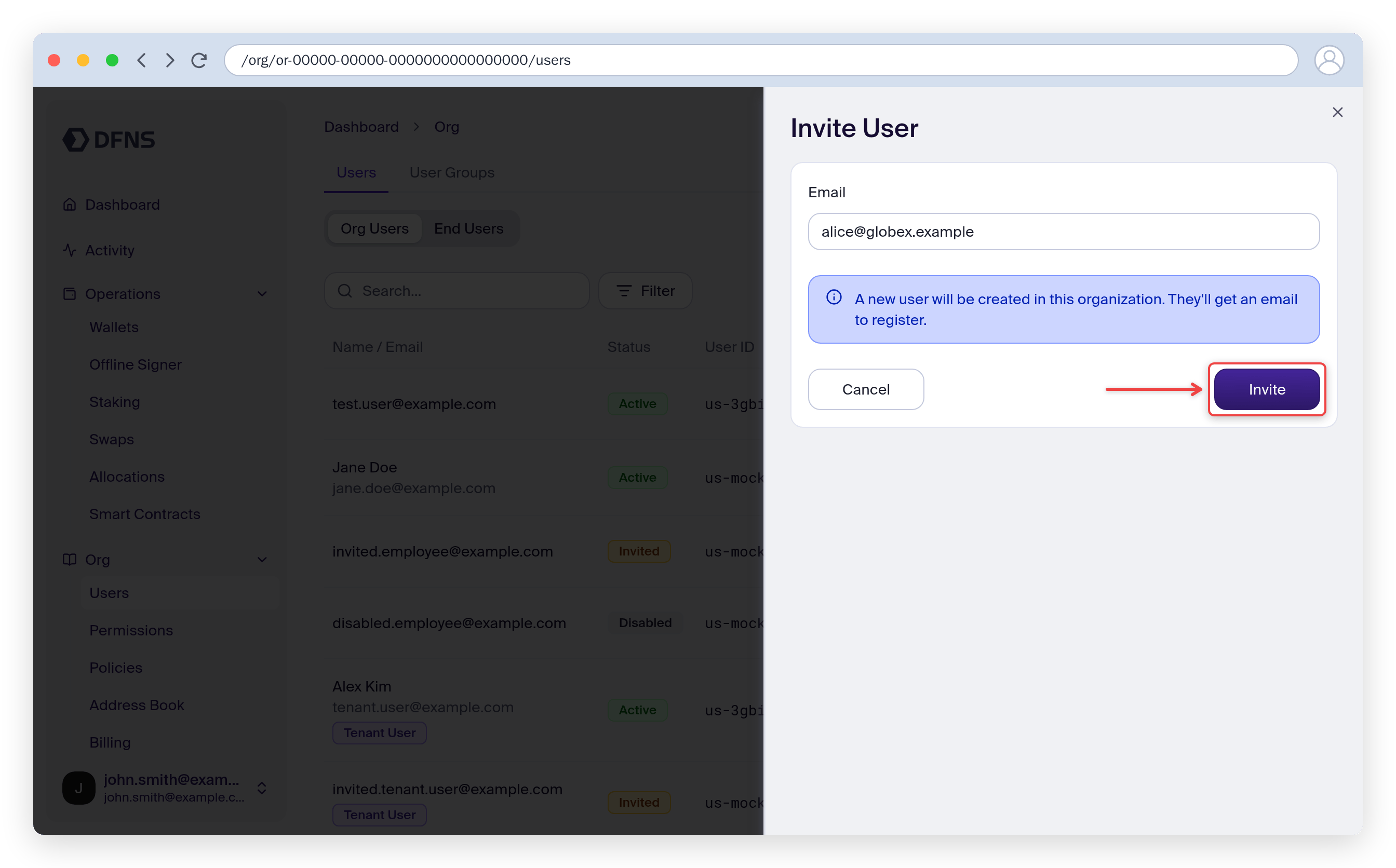
To add a new member to your team:- Navigate to Users.
- Click the Invite User button in the tab bar.
- Enter the user’s email address.
- Click Create.
Deactivate a user
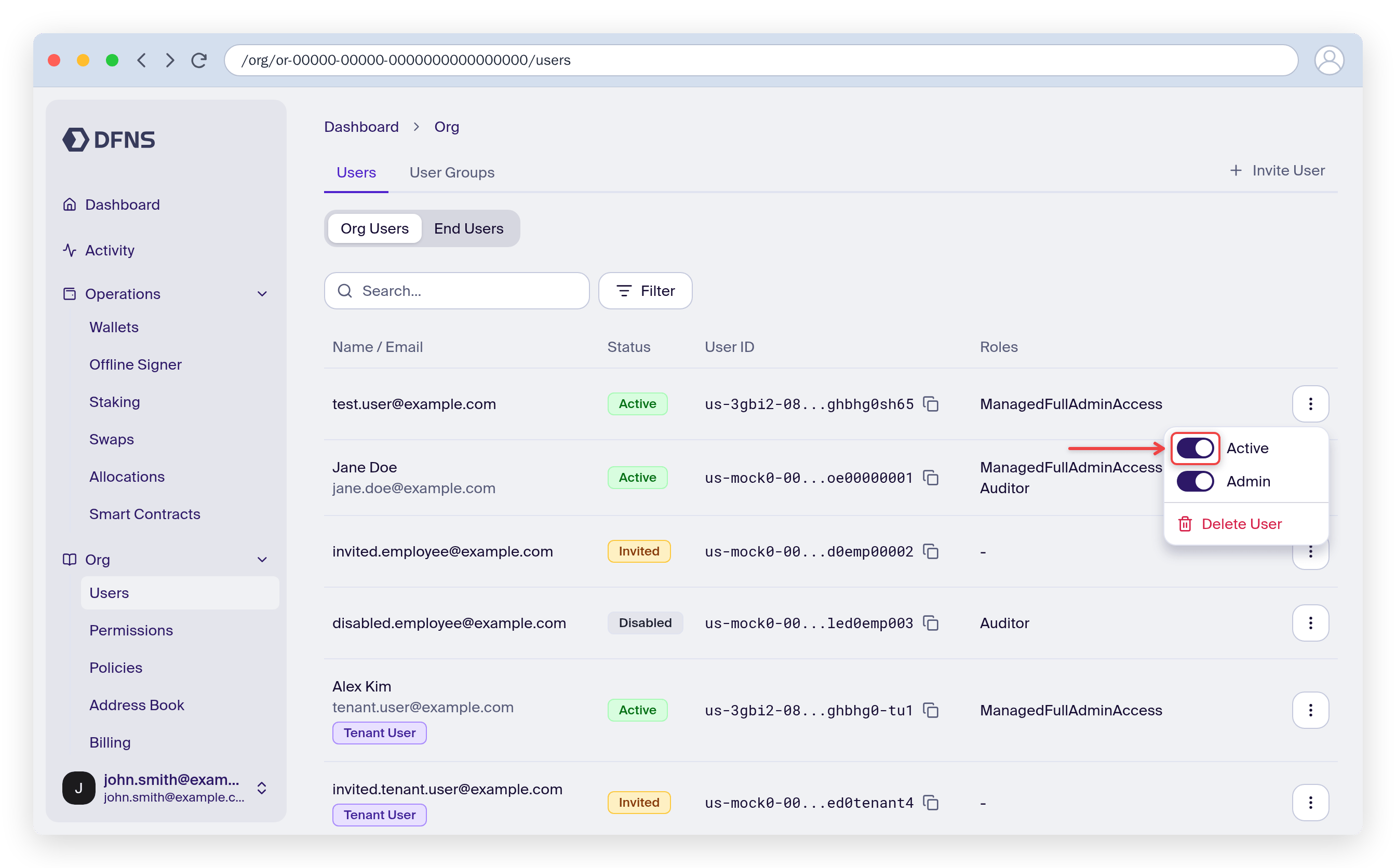
If a team member no longer requires access, you can deactivate their account. Deactivating a user immediately revokes their access to the DFNS dashboard and API. Any Personal Access Tokens or other credentials linked to the user will also stop working. Reactivating the user restores access, including their PATs.- Navigate to Users.
- Find the user in the list and open its action menu.
- Toggle off Active to deactivate the user (or click Delete User to remove them entirely).
Manage roles
Roles allow you to define granular permissions and apply them consistently to different users. This approach simplifies access management and enhances security.Creating a custom role
DFNS provides default roles likeManagedFullAdminAccess (which is applied when you set someone as an Admin), but we highly recommend creating custom roles tailored to your team’s specific responsibilities.
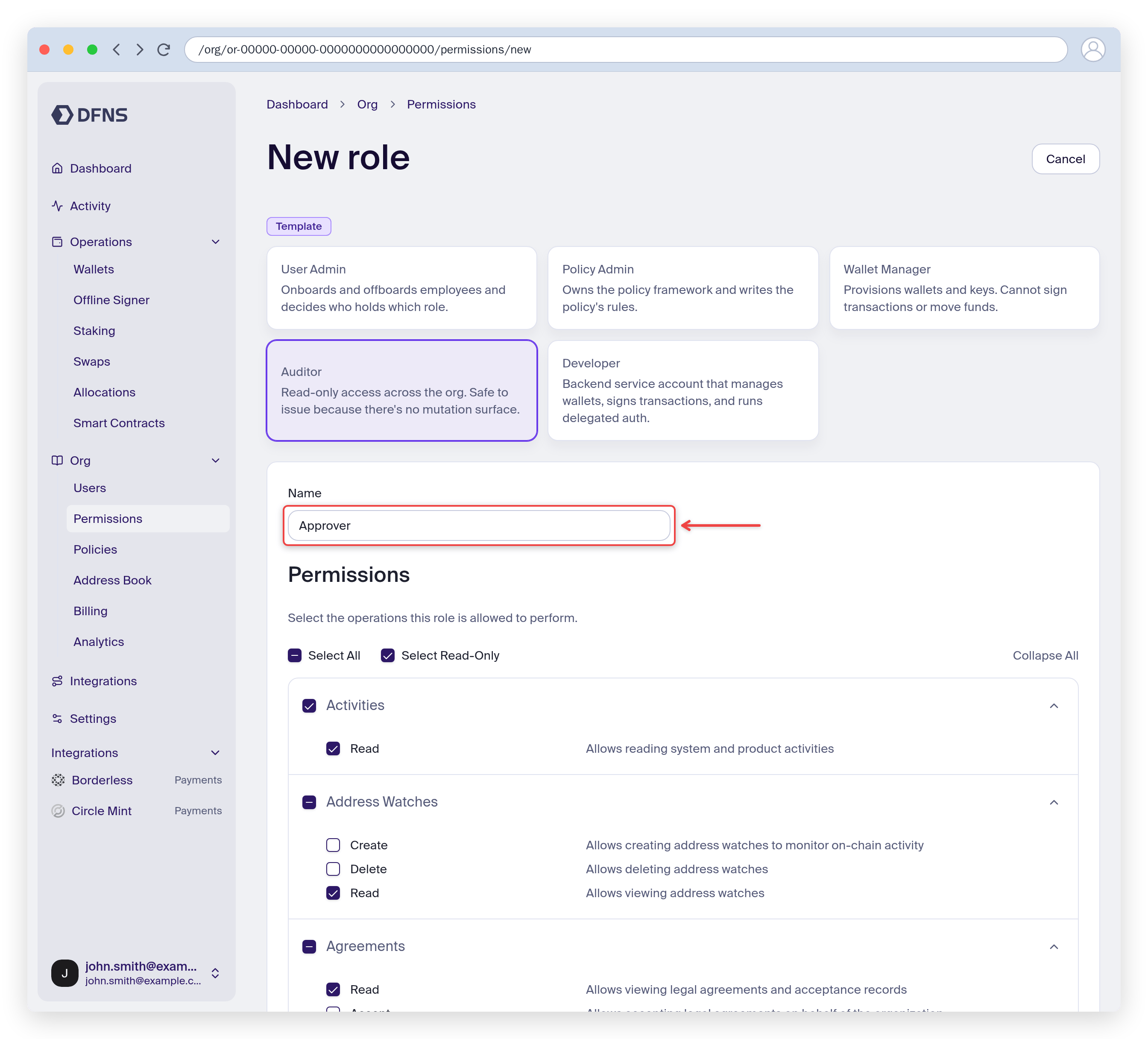
- Navigate to Org > Permissions.
- Click Create Role.
- Give the role a descriptive Name (e.g., “Approver”, “Auditor”, “Transaction Operator”).
- Select the specific Permissions you want to include. Each permission is broken down by action (
Create,Read,Update) and resource (Wallets,Policies, etc.). - Click Create to save the new role.
Assigning roles to users
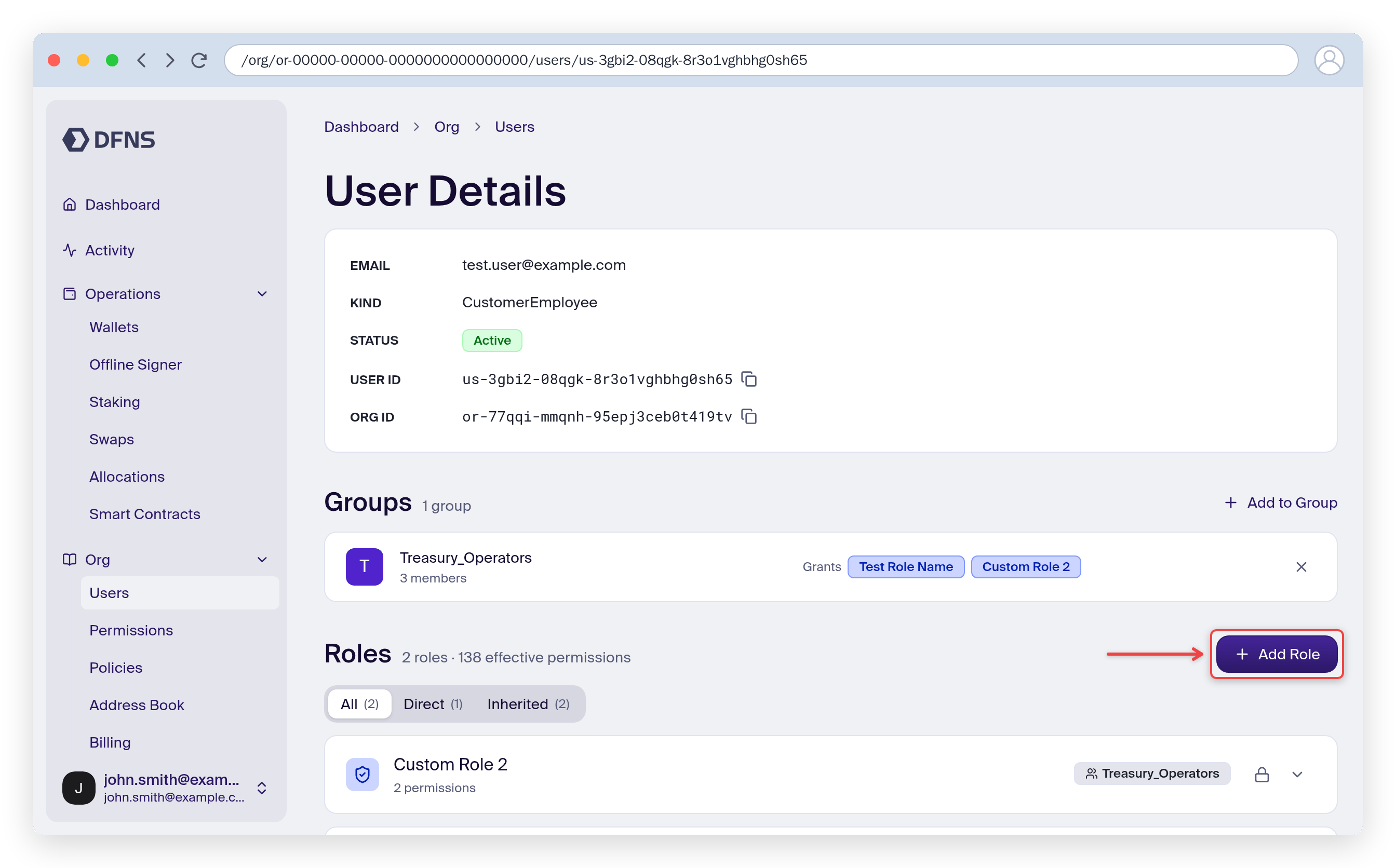
You can assign or change a user’s roles at any time.- Navigate to Users.
- Click on the user you wish to edit.
- In the Roles section, click Add Role to assign a role, or remove existing ones.
- Changes are saved automatically.
Manage user groups
A user group gives a set of users a shared name. Use it to:- Grant roles once: a role assigned to a group applies to every member for as long as they belong to it.
- Name approvers in policies: an approval group can name a user group instead of a fixed list of users, so approvers follow the group’s membership.
Create a user group
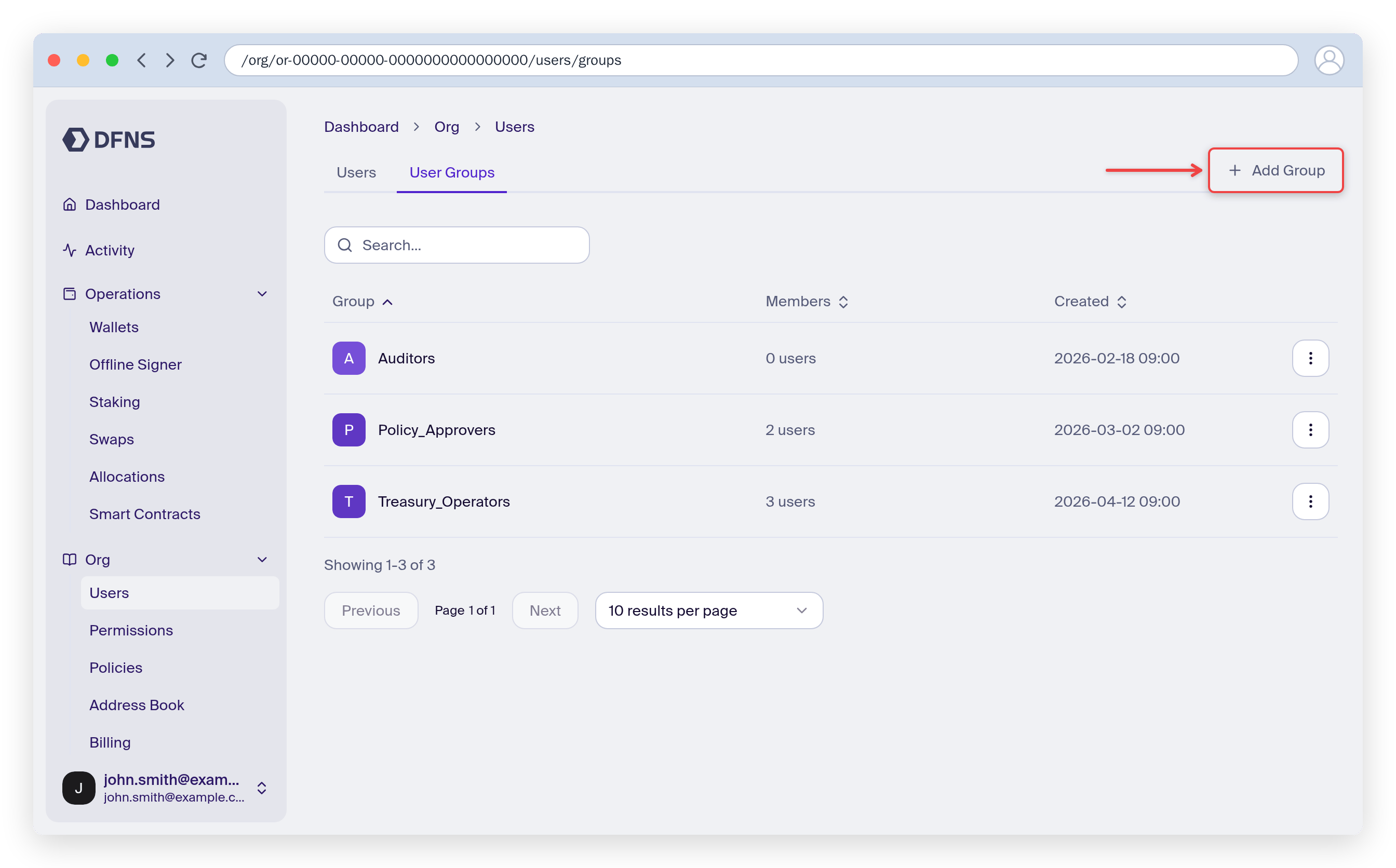
- Navigate to Users > User Groups.
- Click Add Group.
- Enter a Group name (e.g., “Treasury_Operators”) and optionally assign users right away. Names are unique and use letters, digits, and
_ + . -only (no spaces). - Click Create Group.
Manage members
Open a group from the list to see its detail panel. Click Assign user to add members, remove a member from the list, or Rename the group without affecting its members. The group panel also lists the Policies that name the group as approver. You can also manage memberships from a user’s page: the Groups section lists the user’s groups and the roles each one grants, and Add to Group adds the user to another group.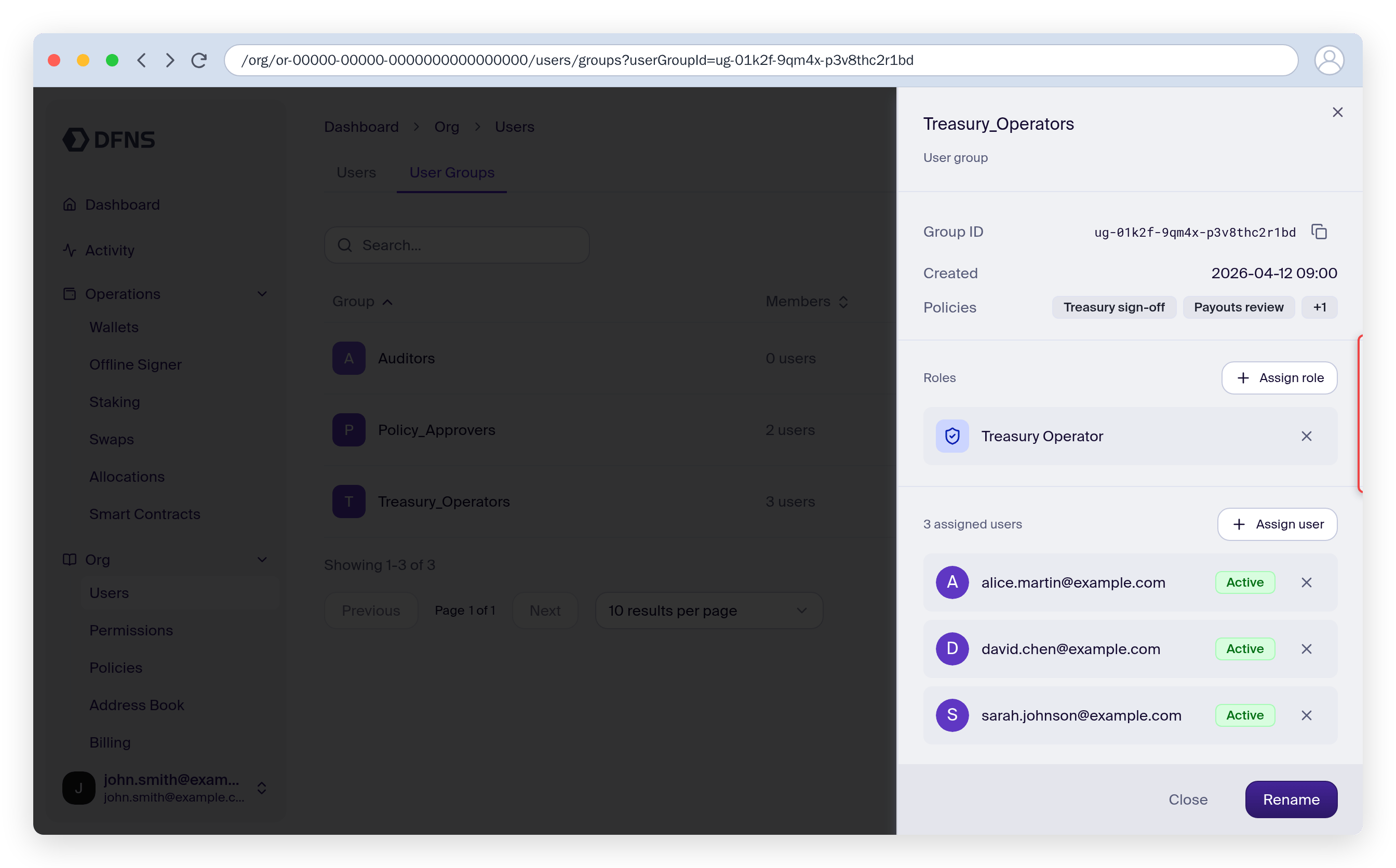
Assign roles to a group
- Open the group from Users > User Groups.
- In the Roles section, click Assign role.
- Select the role and click Assign Role.
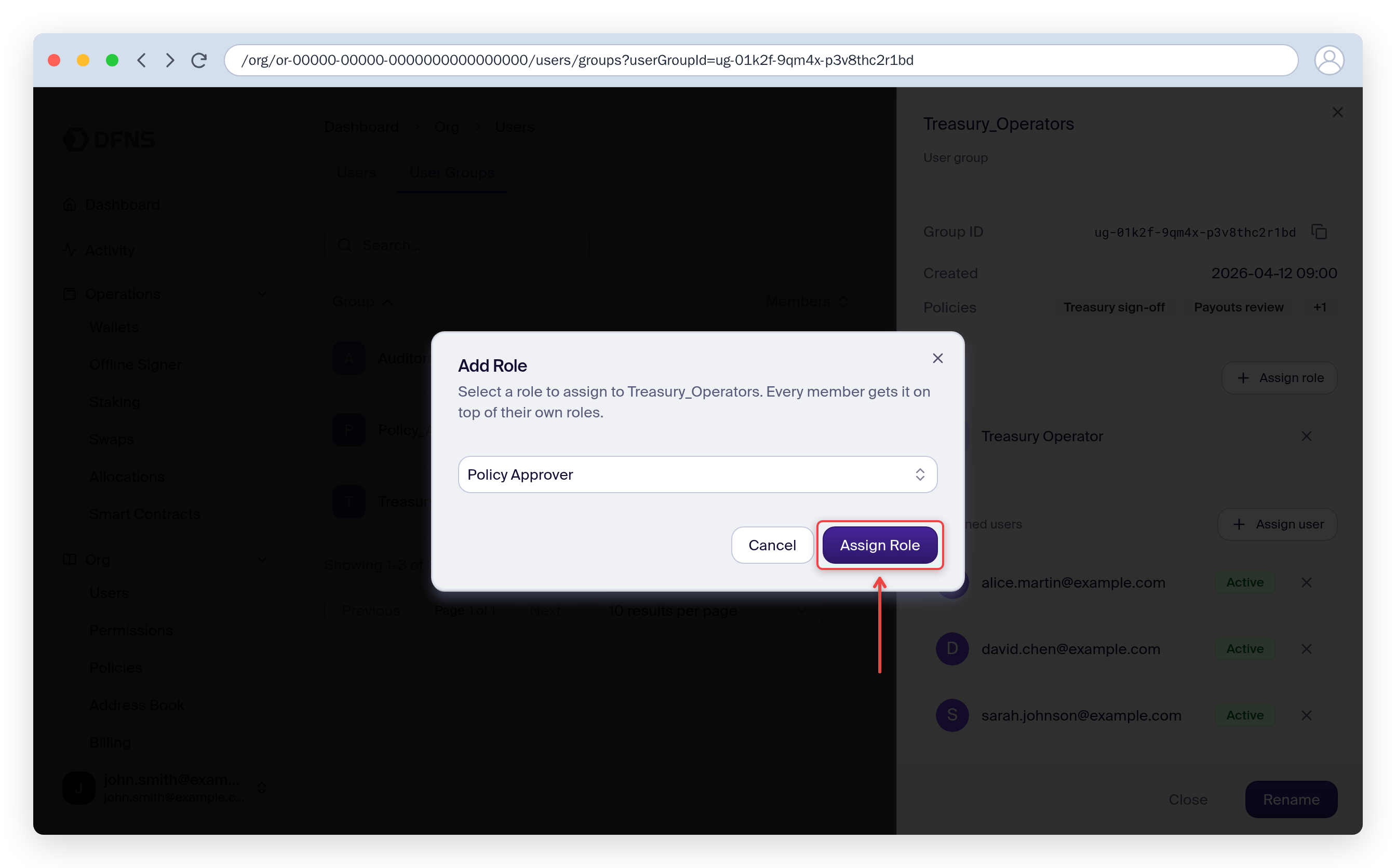
Permissions:Assign and Permissions:Revoke permissions, and a policy on these activities holds the change for approval.
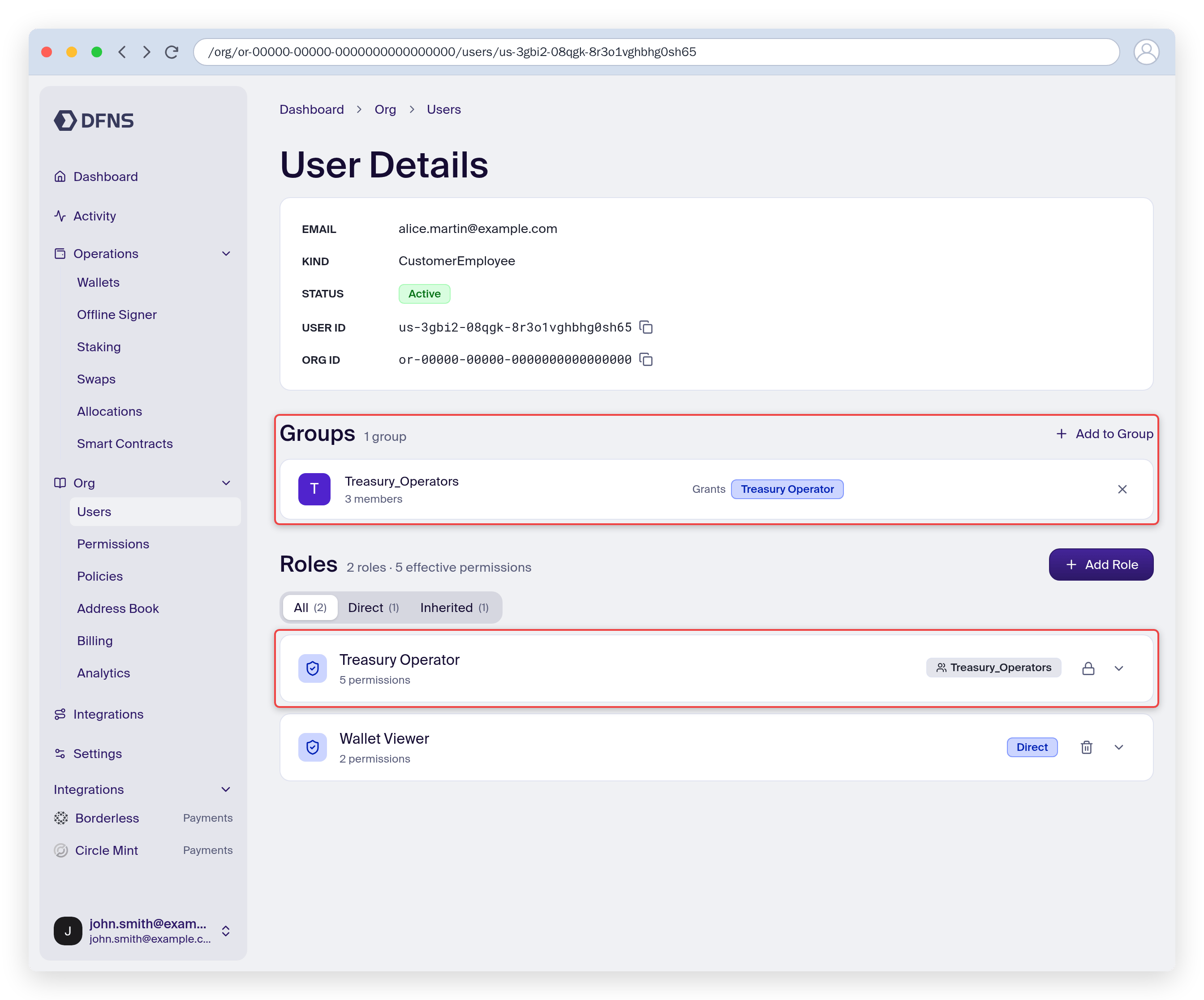
A user’s page shows their Groups, with the roles each group grants, and all the Roles they hold. Filter roles by Direct (assigned to the user) or Inherited (from a group). An inherited role carries the group’s name and a lock: to revoke it, remove the user from the group or the role from the group.
Use a group as a policy approver
When building an approval policy, the Add Approver picker lists your User groups above Individual users. Select a group to make its members approvers; the picker shows how many unique users can then approve. Approvals always follow the group’s current membership, so staffing changes don’t require editing the policy. You can also create a group directly from the picker. The group itself must hold the vote: assign it a role that includesPolicies:Evaluations:Vote. Otherwise the policy cannot be saved. See Create policies and approval groups and quorums.
Delete a user group
Open the group’s action menu in the User Groups list, click Delete, and confirm. Deleting a group revokes all the roles assigned to it, so its members lose every permission they held only through the group.Changes DFNS refuses
To keep your organization governable, DFNS rejects a group change that would leave it in a broken state:- Deleting a group named as approver: a policy names the group in an approval group. Update the policy first.
- Losing the last admin: removing members, deleting the group, or revoking its role would leave no active user holding
ManagedFullAdminAccess. - Stranding an approver: removing members, deleting the group, or revoking its role would take away the last route to
Policies:Evaluations:Votefrom a user a policy names as approver. Give them the permission another way, or update the policy first. - Breaking a quorum: removing members from a group a policy names, or deactivating, archiving, or deleting one of its members, would leave an approval group unable to reach its quorum. The same applies when a
Policies:Modifyapproval group would lose the extra approver it needs because initiators cannot approve their own request. - Renaming under OIDC: while users sign in through OIDC, the login sync matches role claims to group names, so a group cannot be renamed.
Control who changes a group
Group membership decides who holds the group’s roles and who can approve for it. Protect it like role assignments:- Grant the
User Groupspermissions only to the people who manage access (see Roles and permissions). - Require approval for group changes with a user-action policy on
AddUserGroupMembers,RemoveUserGroupMembers,UpdateUserGroup, andDeleteUserGroup. In the dashboard, create it from the policy builder under the User Actions activity category. A held change shows as submitted for approval and applies once approved. - Require approval for role assignments with a policy on
Permissions:Assign. It covers roles assigned to groups, and membership changes and group deletions too, since they grant or revoke the group’s roles. - Protect your approver groups with a policy on
Policies:Modify. A membership change to a group that a policy names as approver changes who approves under that policy, so it is held like an edit to the policy.
Recommendations and best practices
Adhering to the principle of least privilege is crucial for security. Each user should only have the roles essential to perform their duties. Avoid using the broadAdmin role for daily operations.
See an example with an “Approver” role in the Permission-Based Access Control tutorial.