

The Canton Network is a speciality chain that requires a dedicated activation by DFNS teams.Please reach out to our indicating your organization id so we can activate it for you.
1/ Setup a Canton validator
DFNS offers two options for interacting with the Canton Network:This is the easiest way to start quickly broadcasting transactions with Canton wallets.Create a new validator, name it and select kind “DFNS” (or 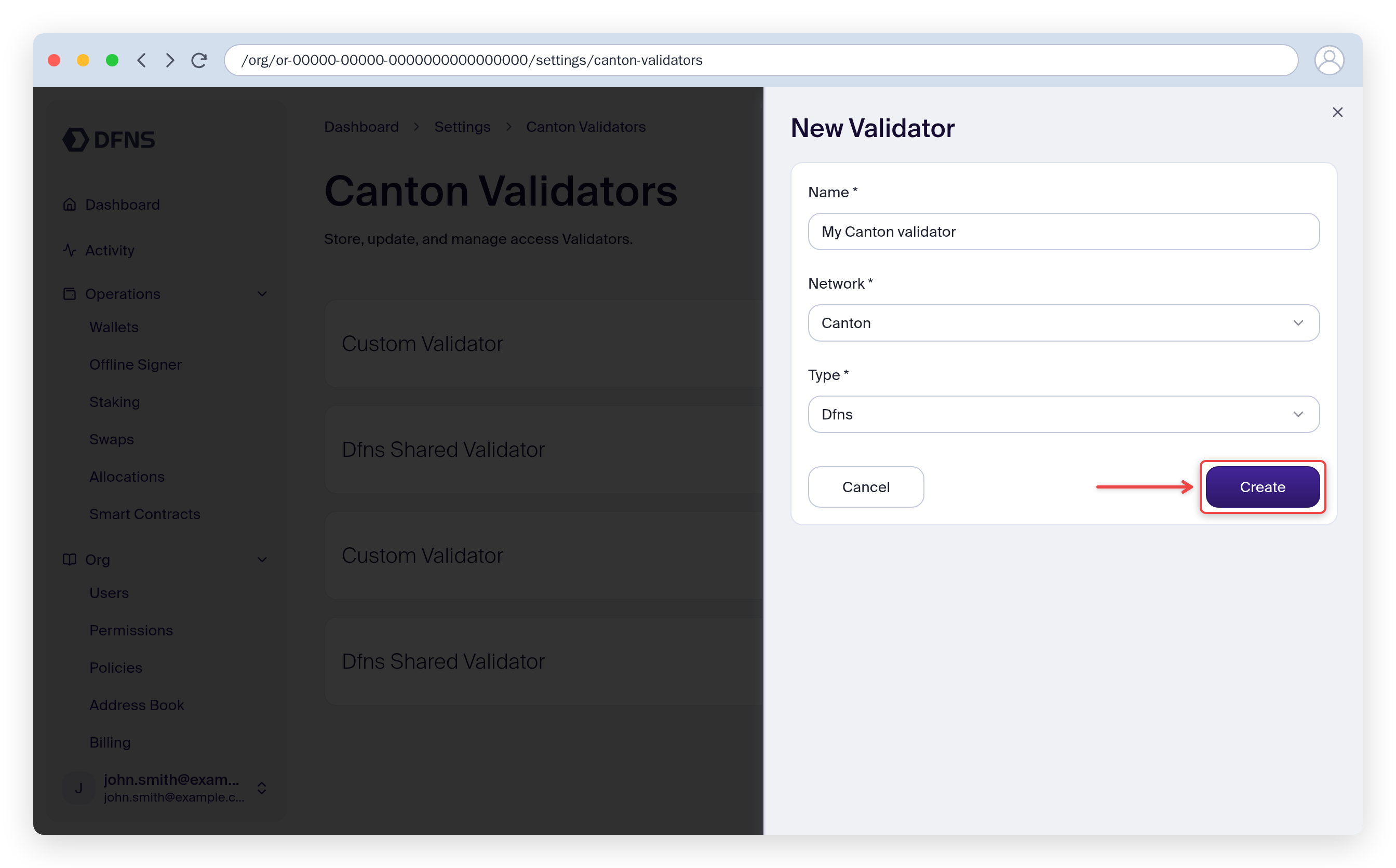
Shared with the API) when requested and you are done.Via API: see the Create Canton Validator endpoint.Via the Dashboard: head to the dashboard: Settings > Developers > Canton validators (direct link) and click ➕ New Validator to access the creation form. Once you are done you will be requested to 🔑 sign the creation with your passkey. Then you are done!Option 2: Connect your own validator (BYOV)
Option 2: Connect your own validator (BYOV)
If you are running your own validator, then you can connect it to DFNS over API (see the Create Canton Validator endpoint) or via the Dashboard. Once connected, you can create secure wallets linked to your validator. There is no extra setup needed on your validator side.We need several information to be able to connect to your validator: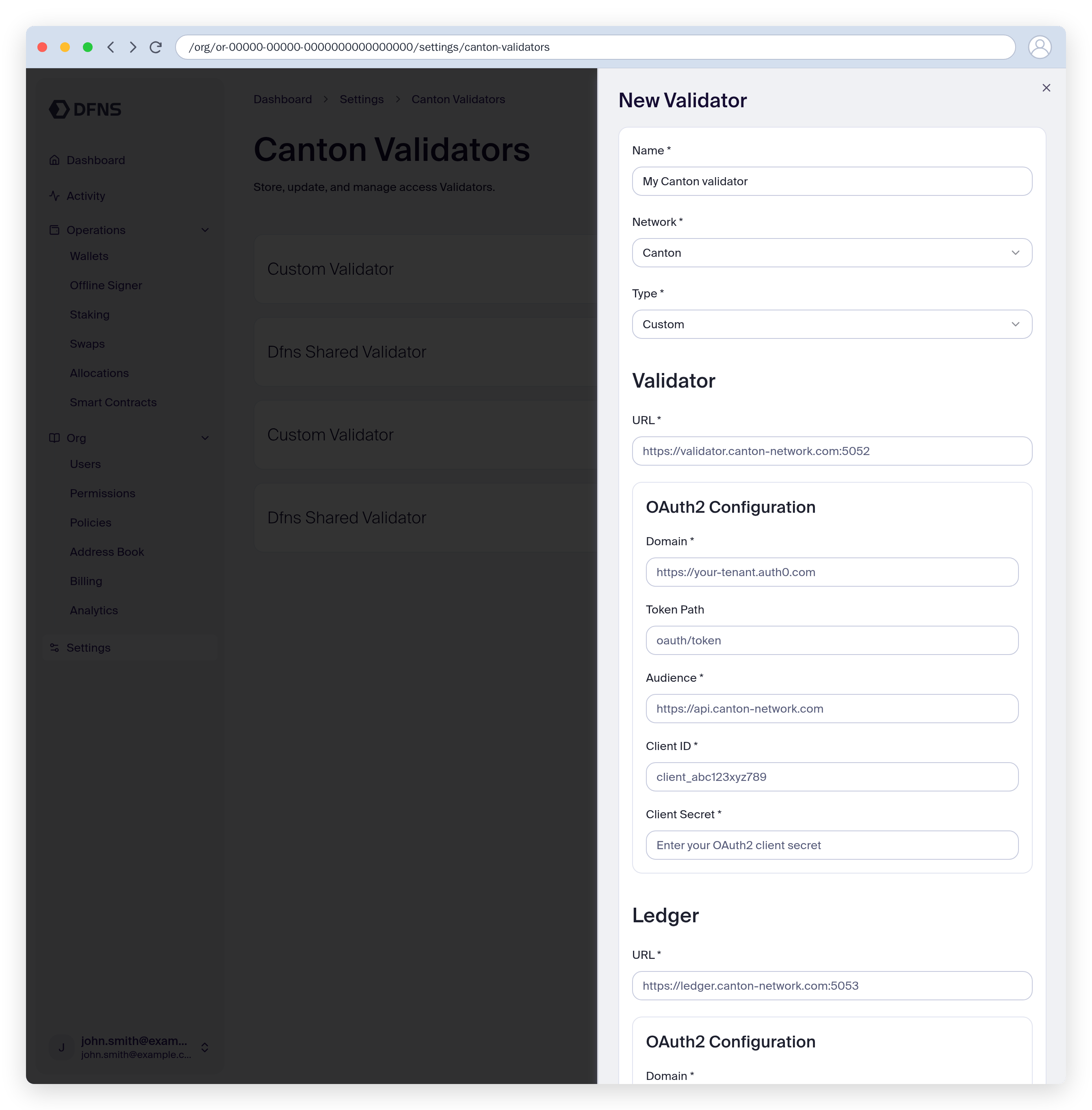
You will always earn the rewards associated with the validator in the native wallet on that validator.We recommend configuring a automated sweep into a separate DFNS-secured Canton wallet to ensure your coins are safe. See an example configuration here.
- The validator URL: we expect to be able to call the validator External Signing API, for instance
$URL/api/validator/v0/admin/external-party/topology/generate. See the underlying calls details here. The calls will be originating from our IP addresses (see dfns-environments) - The validator’s OAuth2 authentication parameters: this is how we will authenticate into your validator. You should have setup authentication already (see details here), you can reuse the same Application details. For convenience you can find some examples with some common providers on the API page
- Domain: your OAuth2 tenant domain. Provided by your auth provider.
- Token Path: token endpoint from your authorization provider. We will call this endpoint on your tenant domain (i.e.:
<domain>/<token path>) - Audience: the audience your configured on your auth provider. It is suggested to start with
https://canton.network.global. - Client ID: The client id from your auth provider for this application.
- Client Secret: The client secret from your auth provider for this application.
- The Ledger API URL: URL to access the Ledger JSON API. DFNS requires access to the full Ledger JSON API — see the complete endpoint list for reference. The calls will be originating from our IP addresses (see DFNS Environments)
- The Ledger OAuth2 authentication parameters: this is how we will authenticate to your ledger API. This will usually use the same parameters as for the validator.
Canton validators support a limited number of wallets. You can connect several validators to your DFNS account.
2/ Setup a Canton Wallet
1
Create a Canton wallet
Create a Canton wallet via the dashboard Wallets page or via the Create Wallet API endpoint.At this stage, the wallet has a key but is not yet registered on any validator. The wallet address will not have a prefix and the wallet cannot be used for transactions yet.
2
Activate the wallet on a validator
Activate the wallet by registering it on a validator using the Activate Wallet endpoint, specifying the Via the Dashboard: After creating a Canton wallet, the dashboard will prompt you to select a validator and activate the wallet.Once activated, the wallet address will have its full prefix and can be used for transactions.
validatorId of the validator you want to use.Via API:3
Pre-approve assets reception (recommended)
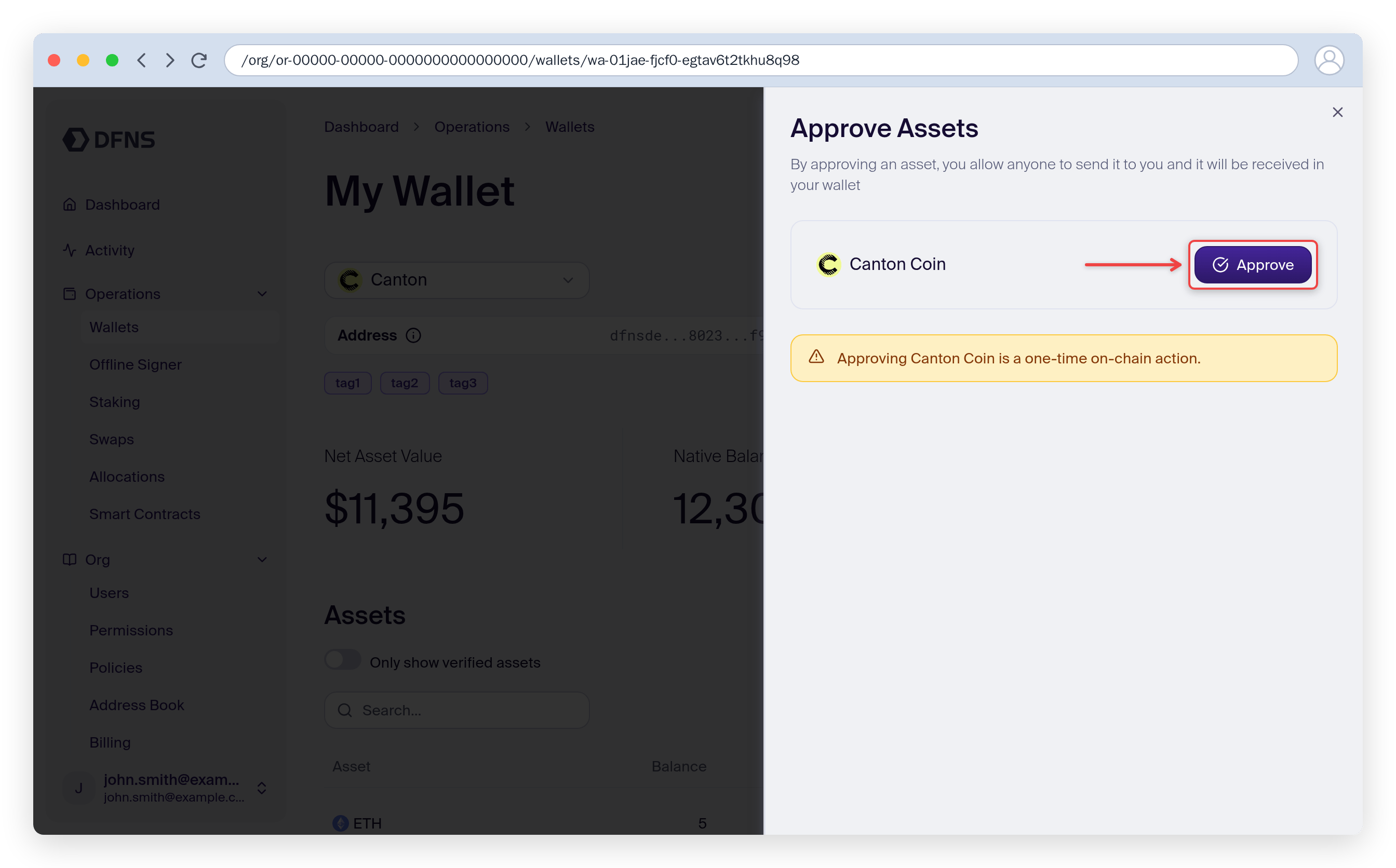
The Canton network has two ways of receiving funds:Pre-approve receiving assets into your Canton Wallet from the Dashboard Wallet page.Click ” Approve Assets” button on the dashboard, then ” Approve” for the assets needed.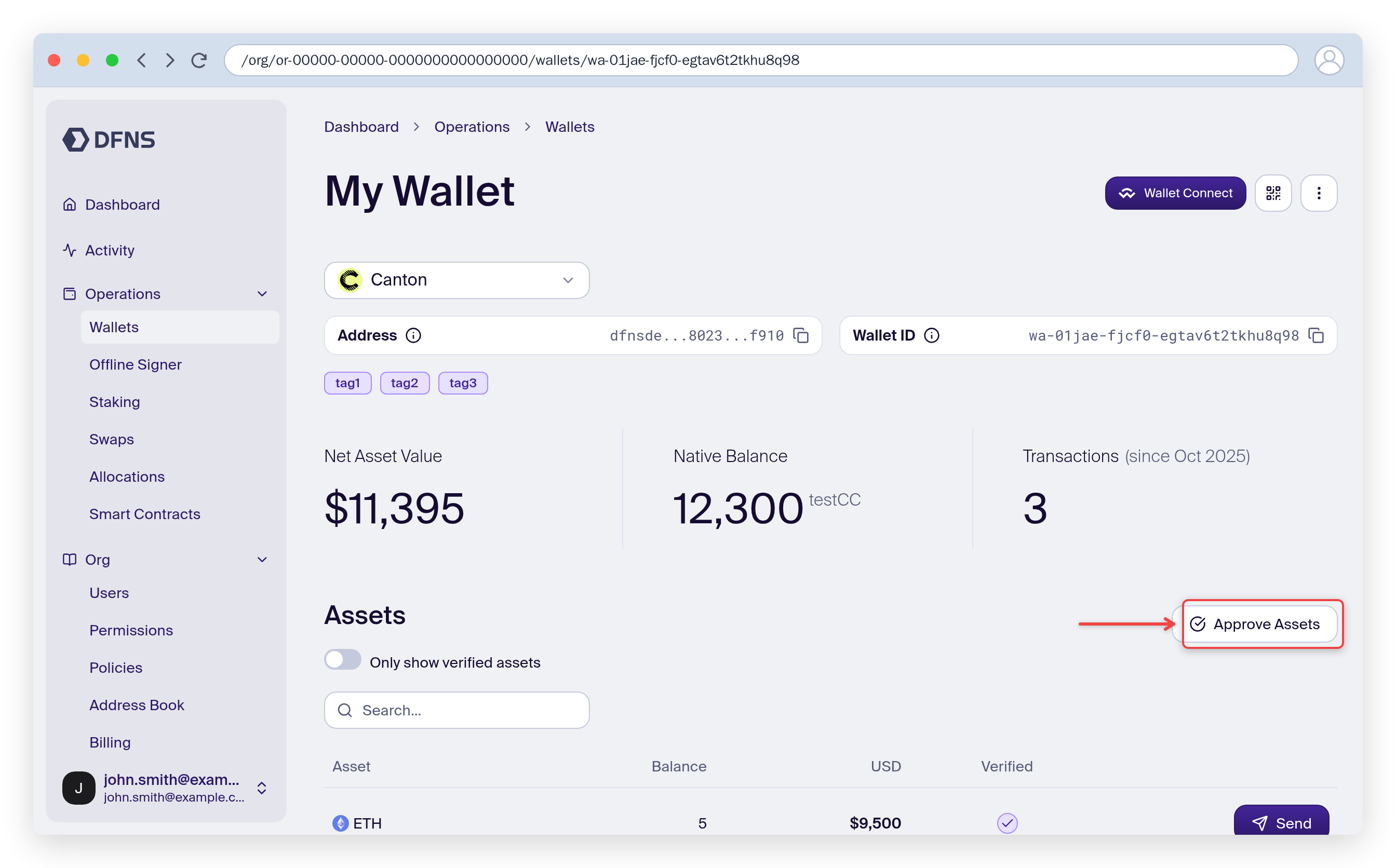
- Transfer offers: the sender creates an offer, and the recipient explicitly accepts or rejects it via the Accept Offer / Reject Offer endpoints or the Dashboard. See Managing offers below.
- Auto-approved transfers: pre-approve an asset so incoming transfers of that asset are accepted automatically, with no manual action needed. This works for both Canton Coin and CIP-56 tokens (see CIP-56 tokens for how their pre-approval is set up).
Unaccepted transfer offers expire after 24 hours. The funds remain locked until the recipient rejects or the sender withdraws the offer.
Transfers
Use the Transfer Asset endpoint for Canton transfers:- Native Canton Coin: Use
kind: Native - CIP-56 tokens: Use
kind: Cip56(see below)
CIP-56 tokens (transfers and offers)
CIP-56 tokens (utility tokens on Canton) can be received in two ways, controlled by theoffer flag on a kind: Cip56 transfer:
- Direct transfer (
offer: false, the default): settles immediately with no acceptance step, but only if the recipient has a transfer pre-approval for that token. If they do not, the request is rejected with a message to create an offer instead. - Transfer offer (
offer: true): the recipient explicitly accepts the offer. Use this when the recipient has not pre-approved the token.
Transferring to yourself does not require a pre-approval or an offer.
Pre-approving a CIP-56 token
The high-level pre-approval (kind: TransferPreapproval broadcast, and the dashboard Approve Assets button) applies to Canton Coin only. To pre-approve a CIP-56 utility token (for example USDCx) so its transfers are auto-accepted, broadcast a custom Canton transaction on the receiver wallet that creates the Utility Registry TransferPreapproval contract for that token:
Confirmed on the Canton ledger, kind: Cip56 transfers to that wallet settle directly with offer: false. A full runnable example is in the SDK Canton examples.
The
TransferPreapproval template, its package-ID prefix, and the operator / instrumentAdmin party IDs are defined by the token’s registry (the Digital Assets Registry Utility), not by DFNS, and are specific to your Canton environment and the token. Pre-approval support depends on the registry version (Registry Utility v0.11.0 or later for assets such as USDCx). Confirm the template and field names against the Digital Assets documentation.Broadcasting a pre-approval is a wallet activity, so it is subject to your policies. Because the transaction carries no transfer value, an amount-based policy rule cannot infer a value and will trigger.