Prerequisites
AddressWatches:Readto see the WatchlistAddressWatches:Createto add a watchAddressWatches:Deleteto stop watching
Watch an address
1
Open the Watchlist
In the dashboard, go to Operations and open the Watchlist tab, next to Wallets and Vaults. It lists every active watch with its name, network, address, and creation date. Click Watch Address to add one.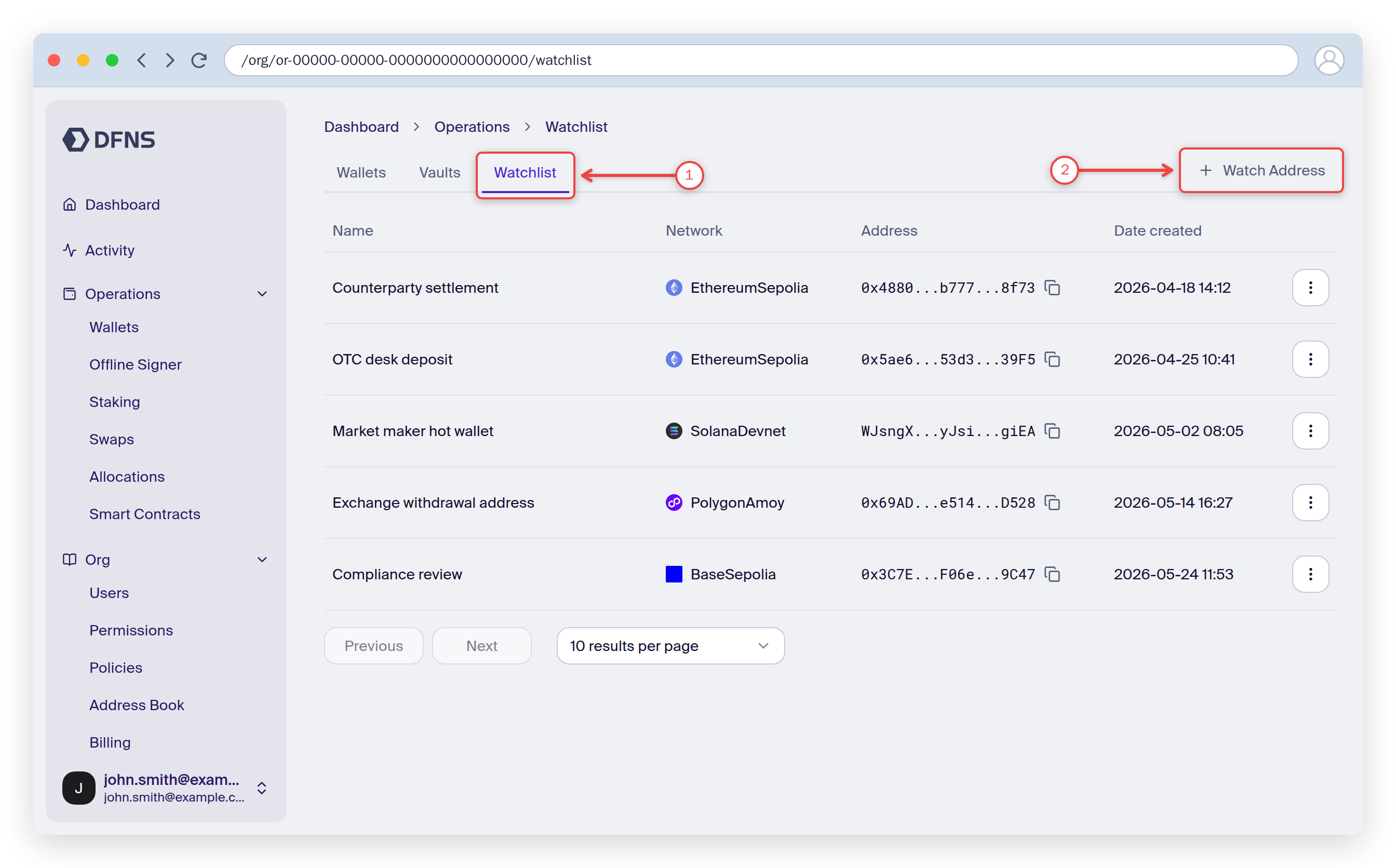
2
Enter the address
Select the network, then enter the address. The network list only shows networks that support address watches, and the form checks that the address is valid for that network. Give the watch a name, and optionally an external ID from your own system, then click Watch Address.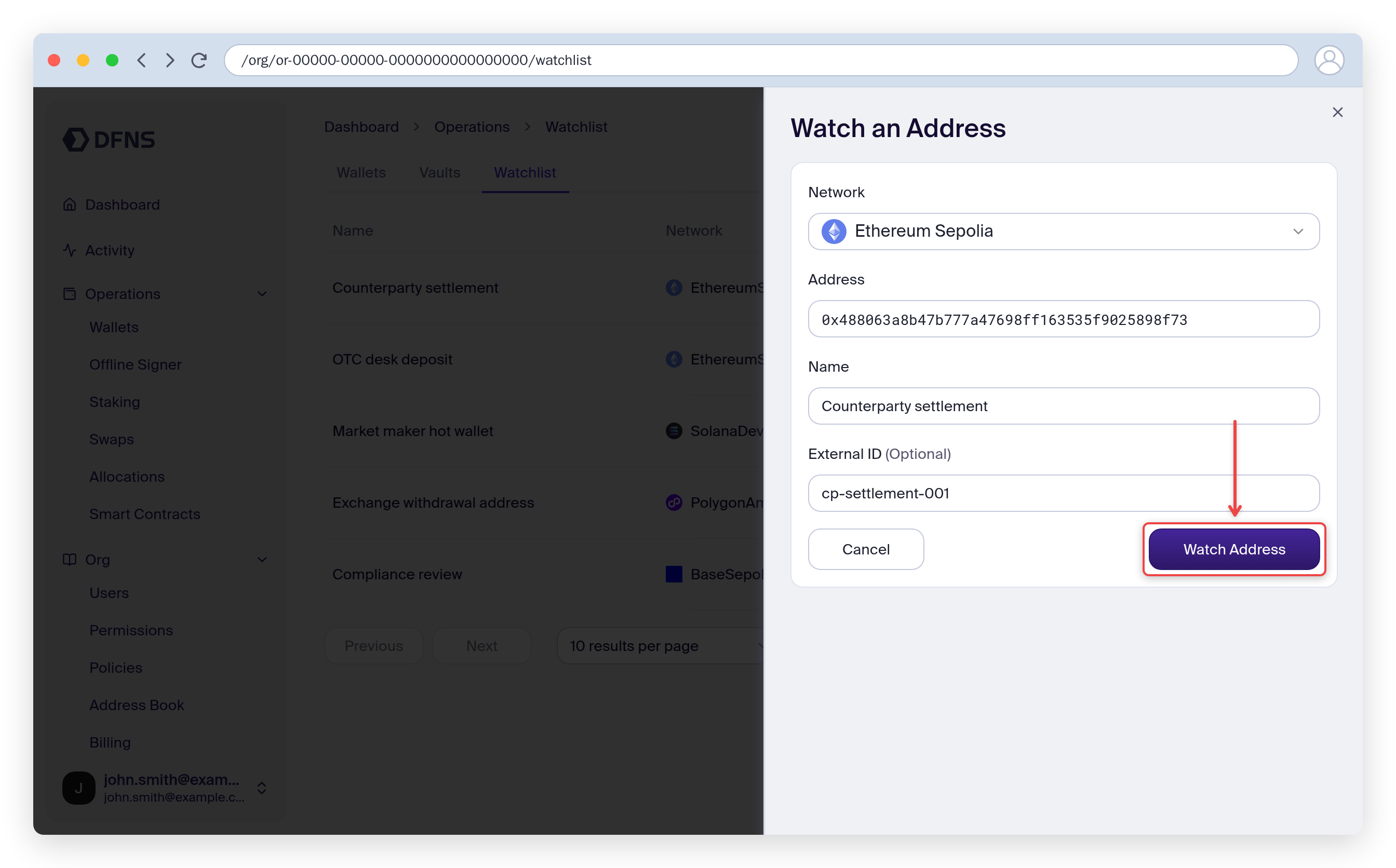
Check balances and transfers
1
Open the watch
Click a watch in the Watchlist. Its page shows the address and the watch ID, the net asset value in USD, the native balance, the date watching started, and every asset the address holds.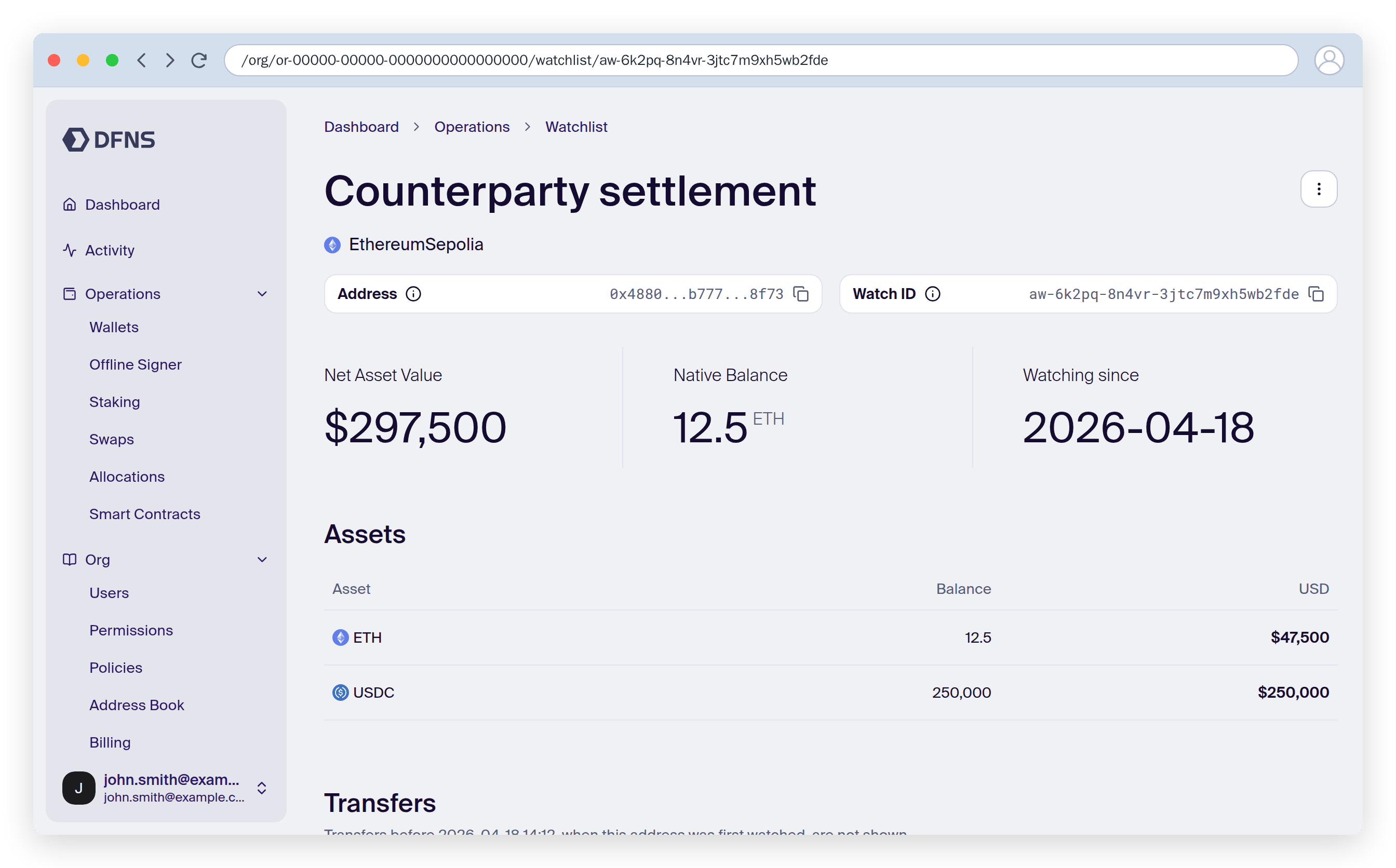
2
Review transfers
Further down the same page, Transfers lists the incoming and outgoing transfers that touch the address, with the counterparty, amount, transaction hash, and time. Transfers from before the address was first watched are not shown.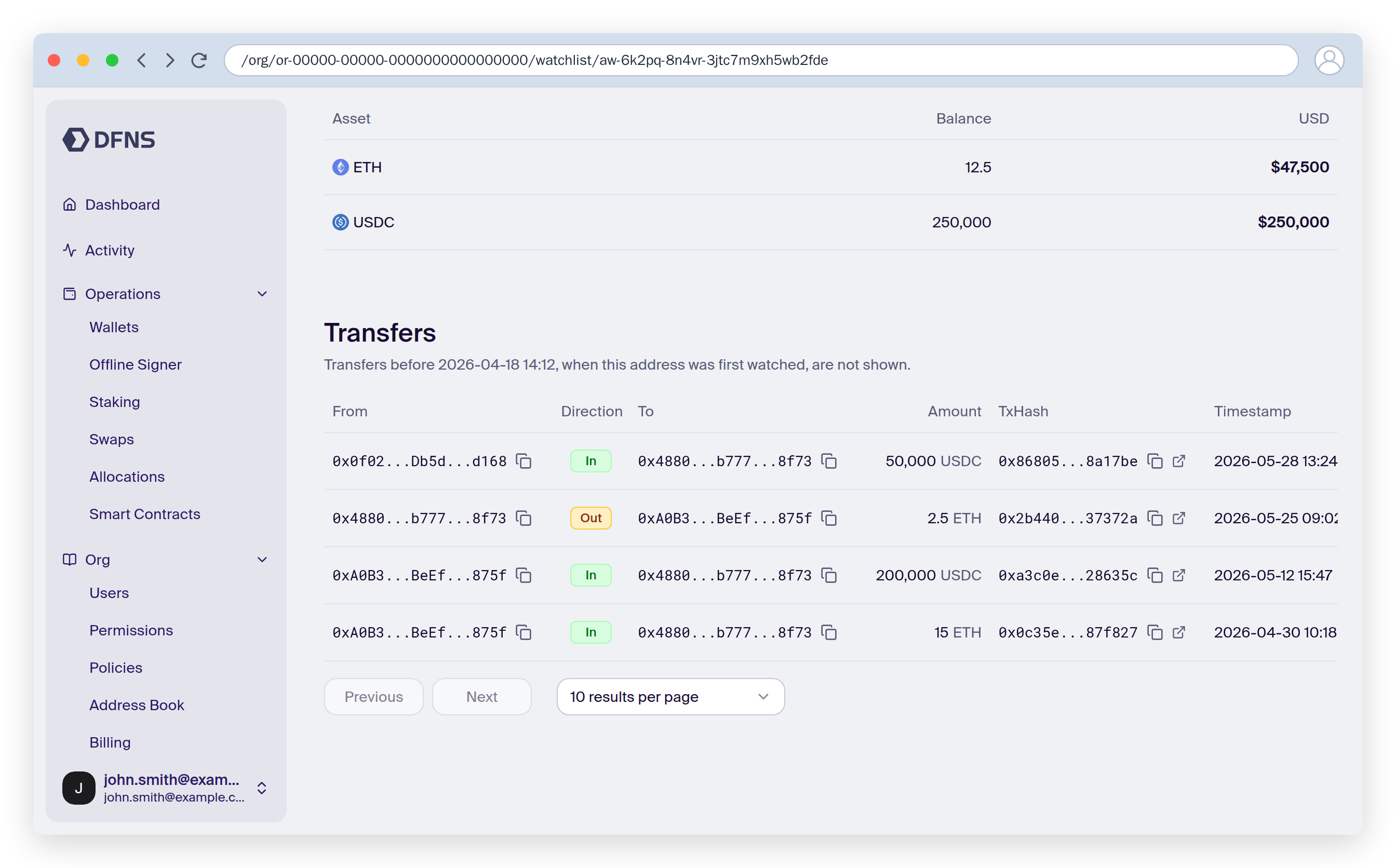
Stop watching
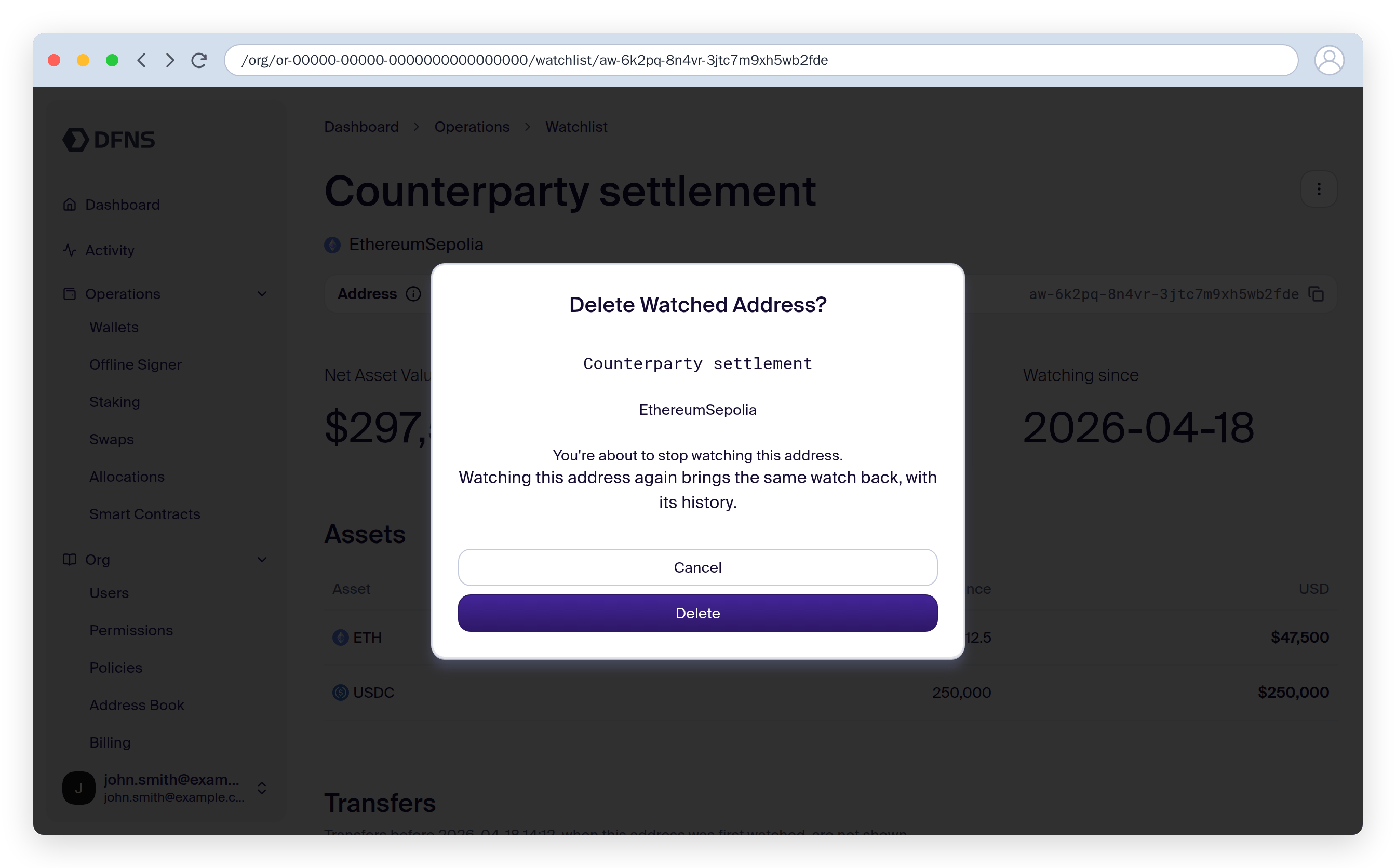
Open the actions menu (⋮) on the watch’s page, or on its row in the Watchlist, and choose Delete. Confirm in the dialog.