DFNS sends your organization’s audit events to Datadog as logs, through the Datadog logs intake API. You can then search them in the Log Explorer and use them in Cloud SIEM detection rules.

Before you start

You need:
  • A Datadog API key. Create one in Datadog under Organization Settings > API Keys. An application key does not work.
  • Your Datadog site: the region your Datadog account is hosted in. It is in the URL you use to sign in to Datadog, for example app.datadoghq.eu for EU1.
  • The Orgs:Settings:Update permission in DFNS.
SIEM forwarding must be enabled for your organization. If the Datadog settings show Feature Disabled, click Activate or contact DFNS support.

Setup

1

Find the Datadog integration

In the DFNS dashboard, go to Integrations and search for Datadog. Turn on the switch on the Datadog card.
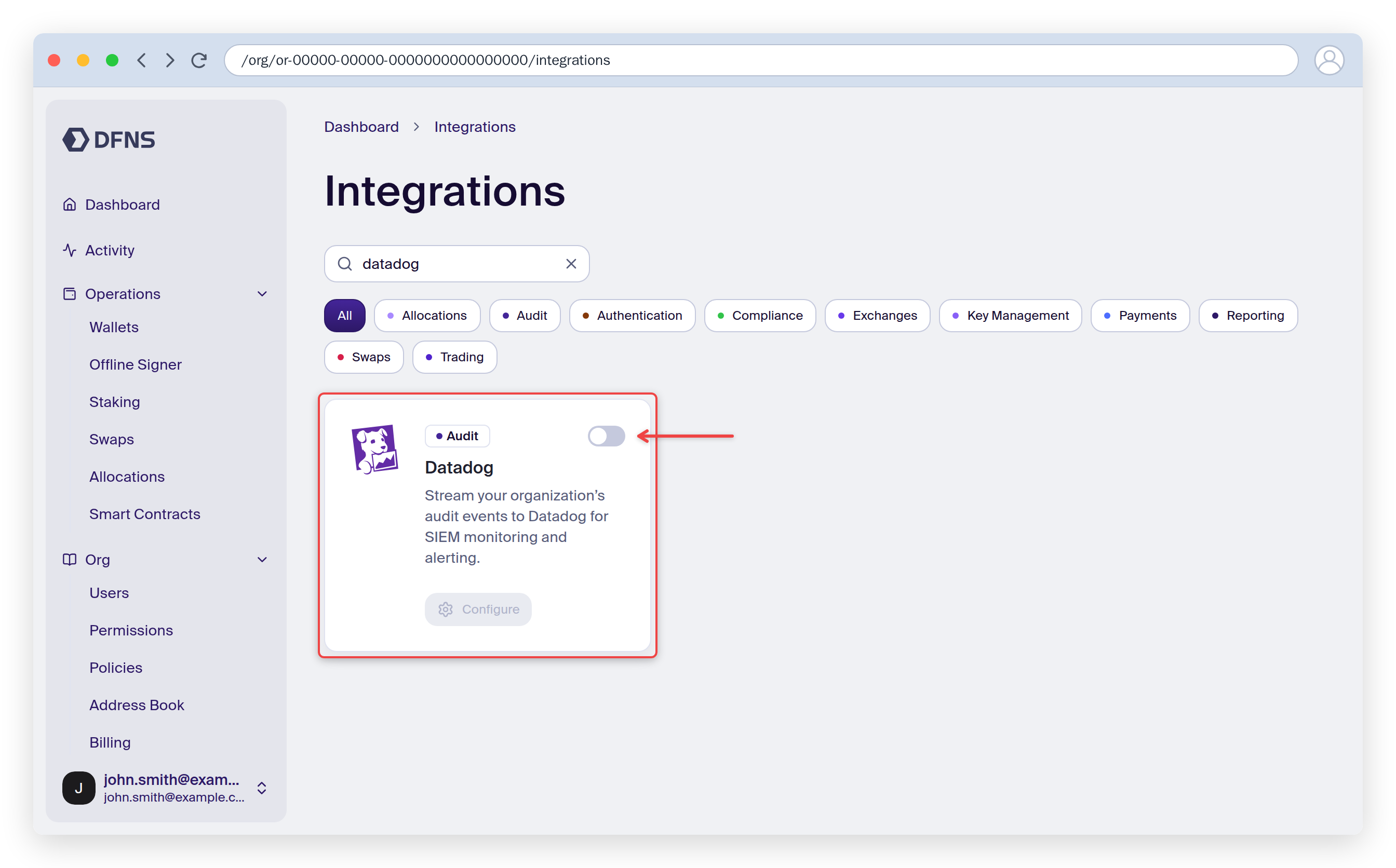
Integrations page filtered on Datadog, with the activation switch of the Datadog card highlighted
2

Enter your Datadog settings

In the Datadog panel that opens:
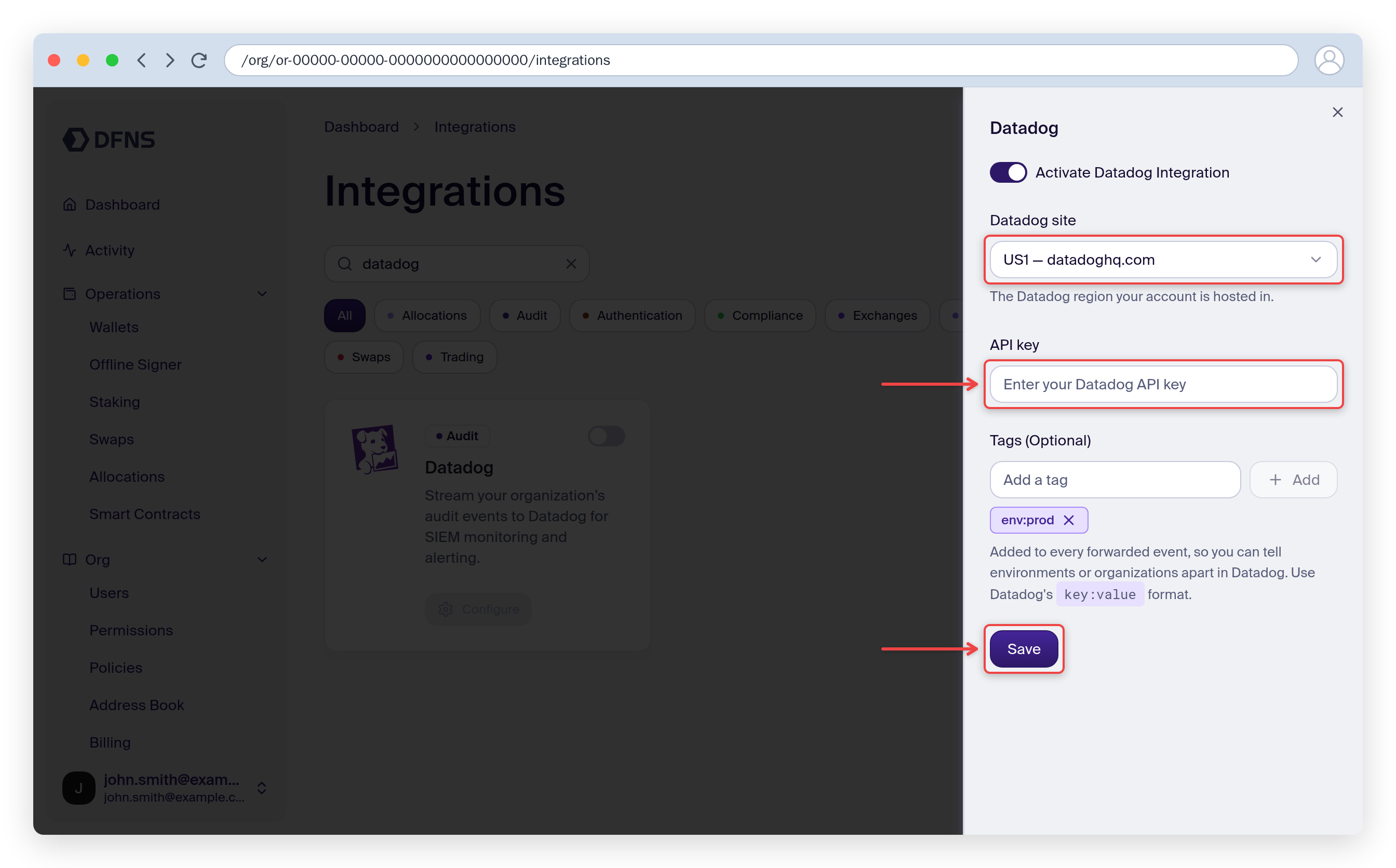
  • Datadog site: select the region of your Datadog account.
  • API key: paste your Datadog API key.
  • Tags (optional): add tags in Datadog’s key:value format, such as env:prod. DFNS adds them to every event, so you can tell environments or organizations apart in Datadog.
Datadog settings panel with the site, API key and tags fields, and the Save button highlighted
3

Save

Click Save. Forwarding starts within a few minutes. Events from before that are not sent.
4

Check that events arrive

Perform a forwarded operation, for example create a wallet. Then search the Datadog Log Explorer for:
DFNS stores your API key encrypted and never shows it again. To change other settings later, click Configure on the Datadog card: leave API key blank to keep the saved key, or enter a new key to replace it. To stop forwarding, turn off Activate Datadog Integration and click Save. To use the events in Cloud SIEM detection rules, make sure your Cloud SIEM security filters include source:dfns.

Datadog sites

Log format

Each event is one Datadog log. The event fields are under evt, and the Datadog reserved attributes are set as follows: Example: a transfer of native tokens.

Example searches

Delivery to Datadog

DFNS sends an event to Datadog only within 18 hours of when it happened, because Datadog does not index older logs. Every action stays in your organization’s audit log, whether or not it reached Datadog. If Datadog rejects the API key, DFNS does not retry the events. Replace the key on the Datadog card, then check that new events arrive.
Last modified on November 24, 2026